
User Guide
UberSalt Diagnostic Software
Last updated:
1. About
UberSalt is an extensively enhanced diagnostic cartridge for Atari 400/800, XL, and XE computers, based on CPS SuperSALT Rev. A. It provides interactive and unattended testing with expanded test coverage, flexible test controls, automatic diagnostic-hardware detection, Error Display support, a dedicated burn-in timer, and comprehensive error tracking.
UberSALT supports the 8YoRetro Port Box as well as Atari’s original CPS SuperSALT Diagnostic Test Assembly. Although optional for many diagnostics, this hardware provides the external signal generation, routing, loopback, and measurement circuitry required for tests that cannot be fully performed by the computer alone. UberSALT identifies tests that require this hardware and automatically selects an appropriate default test suite based on its availability, simplifying setup and helping prevent misleading results.
This guide explains menu navigation, test selection and options, individual diagnostic tests, Error Display codes, burn-in operation, and interpretation of the Error Report. For hardware setup and connections, see the Port Box User Guide.
Some of the diagnostic guidance presented in this guide is adapted from Atari’s CPS SuperSALT Technical User’s Manual.
Scope
This guide focuses on practical use of the UberSalt diagnostic software and assumes any connected port box is fully assembled, calibrated, and verified. For calibration procedures and details of the test assembly’s design and circuitry, refer to the Port Box Technical Reference Manual.
Compatibility
UberSalt supports both the 8YoRetro Port Box and Atari’s original CPS SuperSALT Diagnostic Test Assembly. Either may be used for all tests that require a port box.
The optional Error Display Board (EDB) is also supported. UberSalt automatically detects its presence during initialization and indicates its detection status onscreen.
2. Getting Started
This section describes how to begin using UberSalt to assist in troubleshooting and evaluating an Atari 8-bit computer.
Minimum RAM Requirements
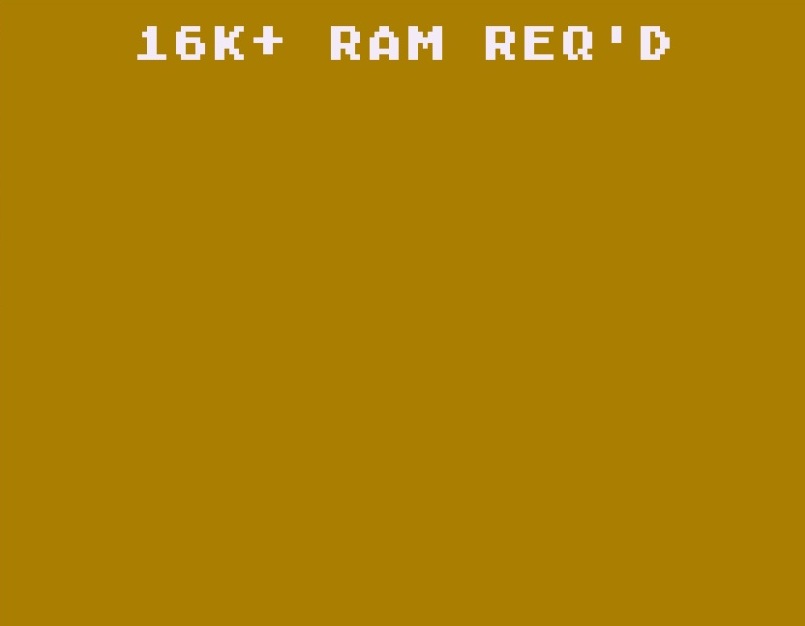
UberSalt requires a minimum of 16 KB of contiguous base RAM ($0000-$3FFF). If this requirement is not met, the following message is displayed (see figure 2-1).
Figure 2-1. Insufficient RAM Warning
Starting UberSalt
- Ensure the computer power is off.
- Ensure your port box is properly connected, if applicable.
- Insert the UberSalt Diagnostic software cartridge.
- Power on the computer.
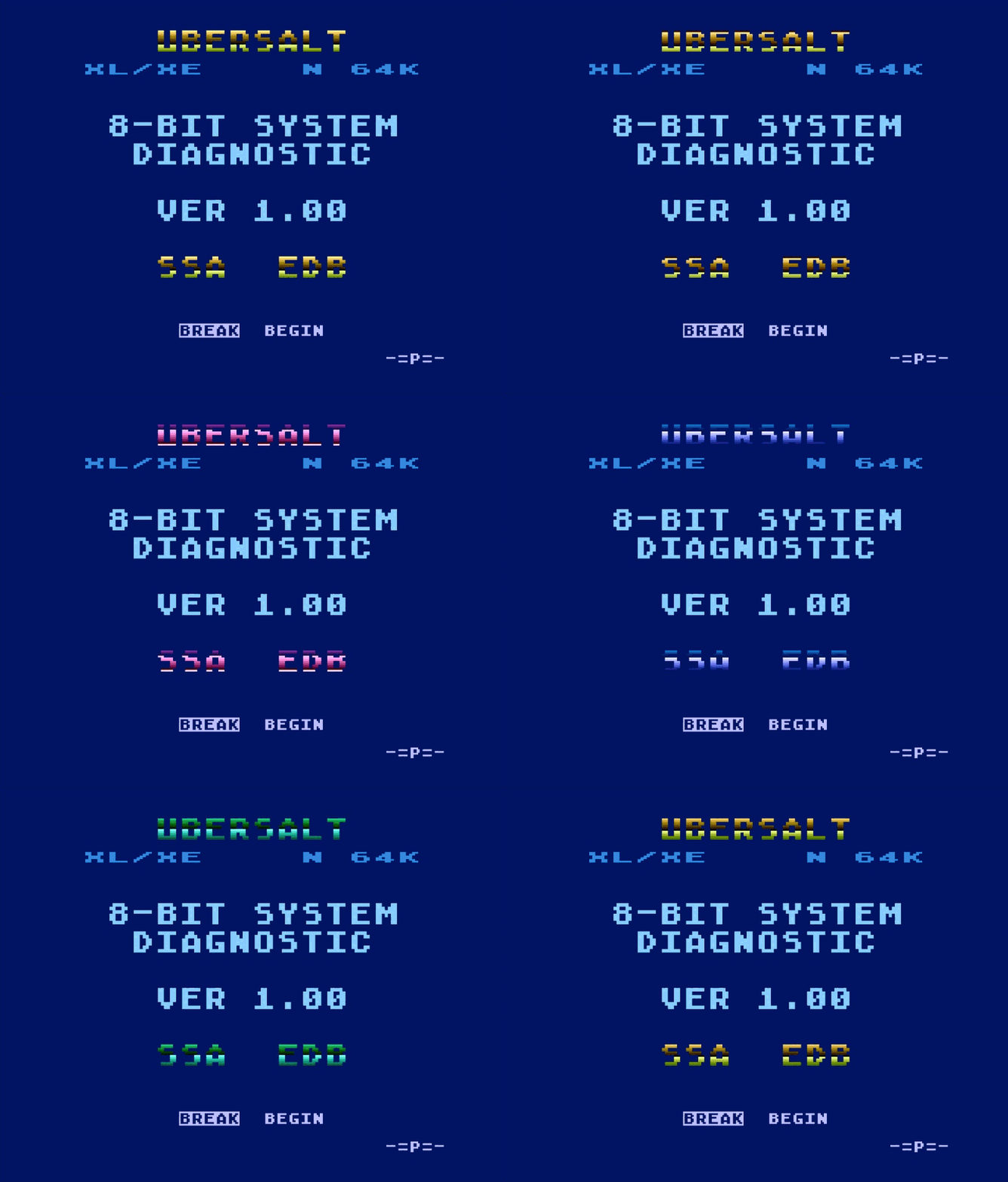
- Wait a few seconds for the splash screen to appear on the display (see figure 2-2).
- Check the hardware-detection indicators, then press BREAK to enter the main menu.
Figure 2-2. UberSalt Splash Screen
Understanding the Splash Screen
The splash screen displays information about the computer and the status of supported diagnostic hardware, allowing the operator to verify the setup before proceeding.
Computer Info Banner
The computer info banner appears below the main heading on most UberSalt screens and identifies the basic configuration of the computer under test. The banner contains the following information:
- Computer family – The first seven character positions identify the detected computer family, such as 400/800, 1200XL, or XL/XE.
- Video processor –
Gindicates GTIA andCindicates CTIA. This field remains blank until the first phase of the GTIA PMG test has completed. - Video standard –
Nindicates NTSC andPindicates PAL. - Memory size – Displays the amount of detected base RAM, such as
16K,24K,32K,52Kor64K.
Notes regarding 400/800 computers:
- Memory size is reported as
32Kfor RAM configurations of40Kand48Ksince RAM from $8000-$BFFF is inaccessible and cannot be detected while the UberSalt cartridge is present. - Memory size is assumed
52Kwhen RAM is detected at $C000.
Hardware Detection
During startup, UberSalt automatically detects supported diagnostic hardware and displays its status on the splash screen:
SSA– SuperSALT Diagnostic Test Assembly (port box)EDB– Error Display Board
When a device is detected, its indicator continuously rotates through the Atari color palette. If a device is not detected, its indicator remains displayed in a dim, static blue.
If the test assembly is connected but not detected, verify all cable connections, ensure input power is present, and confirm that its power switch is on. Press RESET to reinitialize UberSalt and repeat hardware detection.
Force Test Assembly
A fault in the computer may prevent detection of an attached test assembly. Holding START during initialization forces UberSalt to treat the assembly as present if automatic detection fails, enabling the corresponding default tests. This forced state is indicated by a bright, static blue SSA indicator, while successful automatic detection retains the normal rotating colors.
Software Initialization
When UberSALT starts at boot or RESET is pressed, it begins a new diagnostic session by clearing previously accumulated test results and restoring default test settings. The software also identifies the computer, detects supported diagnostic hardware, and selects an appropriate default test suite.
Computer Identification
UberSALT identifies the computer family by examining specific locations in the operating system ROM. A signature byte at $FCD8 identifies the original Atari 400/800 family. If that signature is absent, a second byte at $FF01 distinguishes the 1200XL from other XL/XE models. The detected family determines which hardware configuration and diagnostic procedures UberSALT uses. Because identification relies on OS ROM contents rather than physical hardware, replacement or modified operating systems may cause the computer to be identified incorrectly.
Automatic Test Selection
UberSalt automatically adjusts its default selection of diagnostic tests according to whether a test assembly is detected. When no test assembly is present, tests requiring the external hardware are excluded from the default selection.
Error Display Board
UberSALT supports an optional Error Display Board (EDB) that functions as an independent diagnostic status monitor. During testing, UberSALT sends codes to the EDB identifying the active test and, where applicable, its phase or subtest. UberSALT also supplies activity signals that allow the EDB to maintain an independent burn-in clock while testing is active. If computer activity ceases beyond the EDB’s timeout period (typically 20 seconds), the EDB displays the most recently received diagnostic code.
UberSALT’s EDB codes appear in brackets beside the corresponding test and subtest headings throughout this guide. A complete reference is provided in table 7-1.
When a new diagnostic session is initiated by pressing BREAK at the splash screen or using a Quick-Start shortcut, UberSALT sends a predefined signal to the EDB. A compatible EDB can use this signal to perform session initialization tasks, such as resetting its burn-in timer.
3. Main Menu
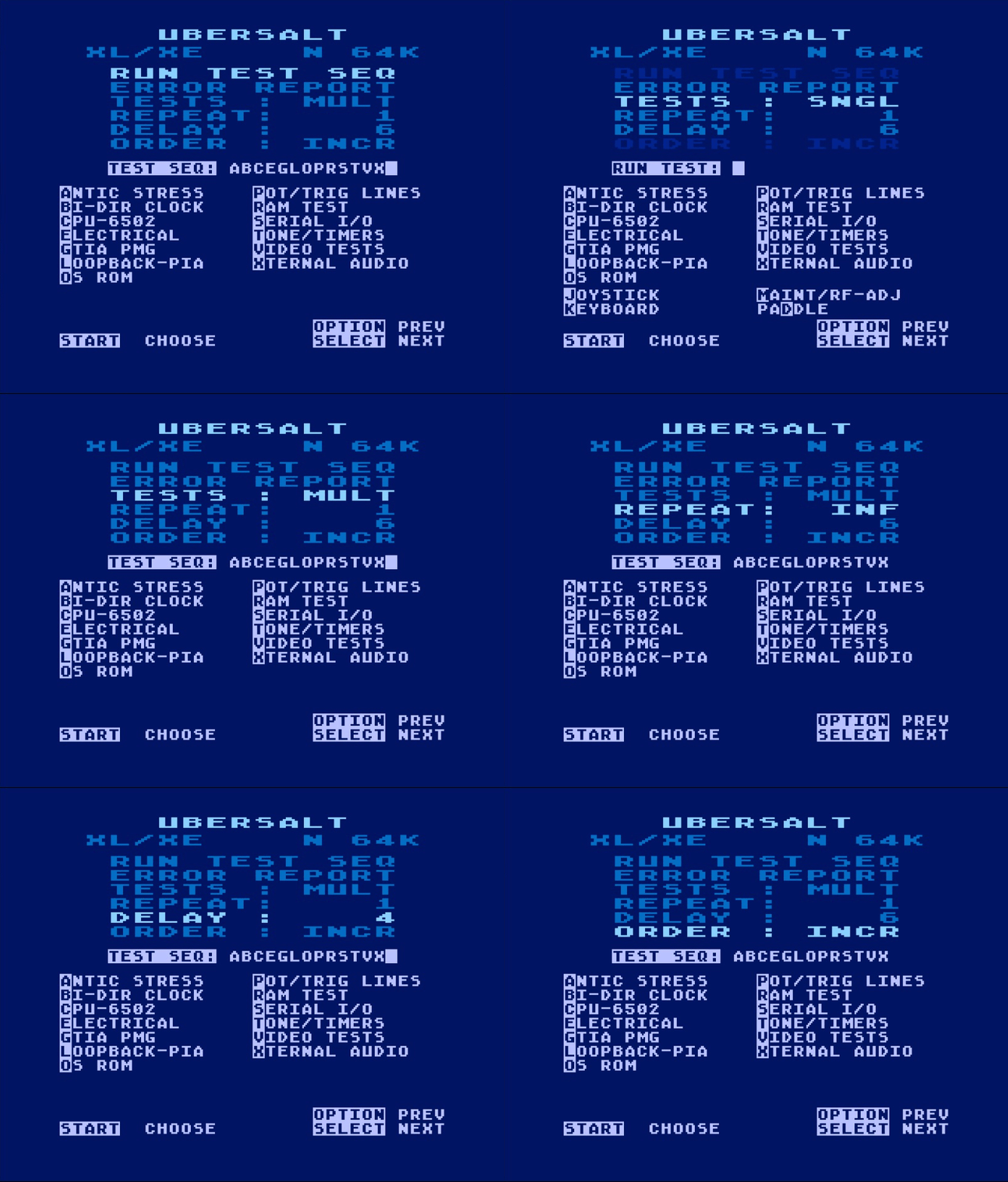
The Main Menu provides access to diagnostic tests, test settings, and accumulated results. Below the computer info banner are the main menu options, followed by a test-selection prompt and a list of available diagnostic tests. The footer displays the available navigation controls.
Figure 3-1. UberSalt Main Menu
Menu Navigation
UberSalt’s menu can be navigated solely by the console keys, as these are less susceptible to failure than the more complex keyboard matrix. Regardless, keyboard aliases are often available as alternatives.
Table 3-1. Main Menu Navigation
| Console | Key | Function | Description |
|---|---|---|---|
| SELECT | ↓ | Next | Navigates to the next menu item. |
| OPTION | ↑ | Prev | Navigates to the previous menu item. |
| START | SPACE | Execute | Executes the highlighted item, or advances through multiple-choice options. |
| < > | Adjust | Adjusts multiple-choice options in either direction. |
Run Test Seq
Runs the test sequence listed at the TEST SEQ: prompt using the current REPEAT, DELAY, and ORDER settings. Select it and press START, or use RETURN as a shortcut in MULT mode.
Error Report
Displays accumulated test results and recorded failure details. See the Error Report Overview in section 4 for navigation and general use, and Error Report in section 6 for interpreting the results.
Multiple Tests (MULT)
Selecting the MULT setting enables multiple-test operation and displays the TEST SEQ: prompt along with the applicable menu options.
Figure 3-2. Multiple Tests Mode
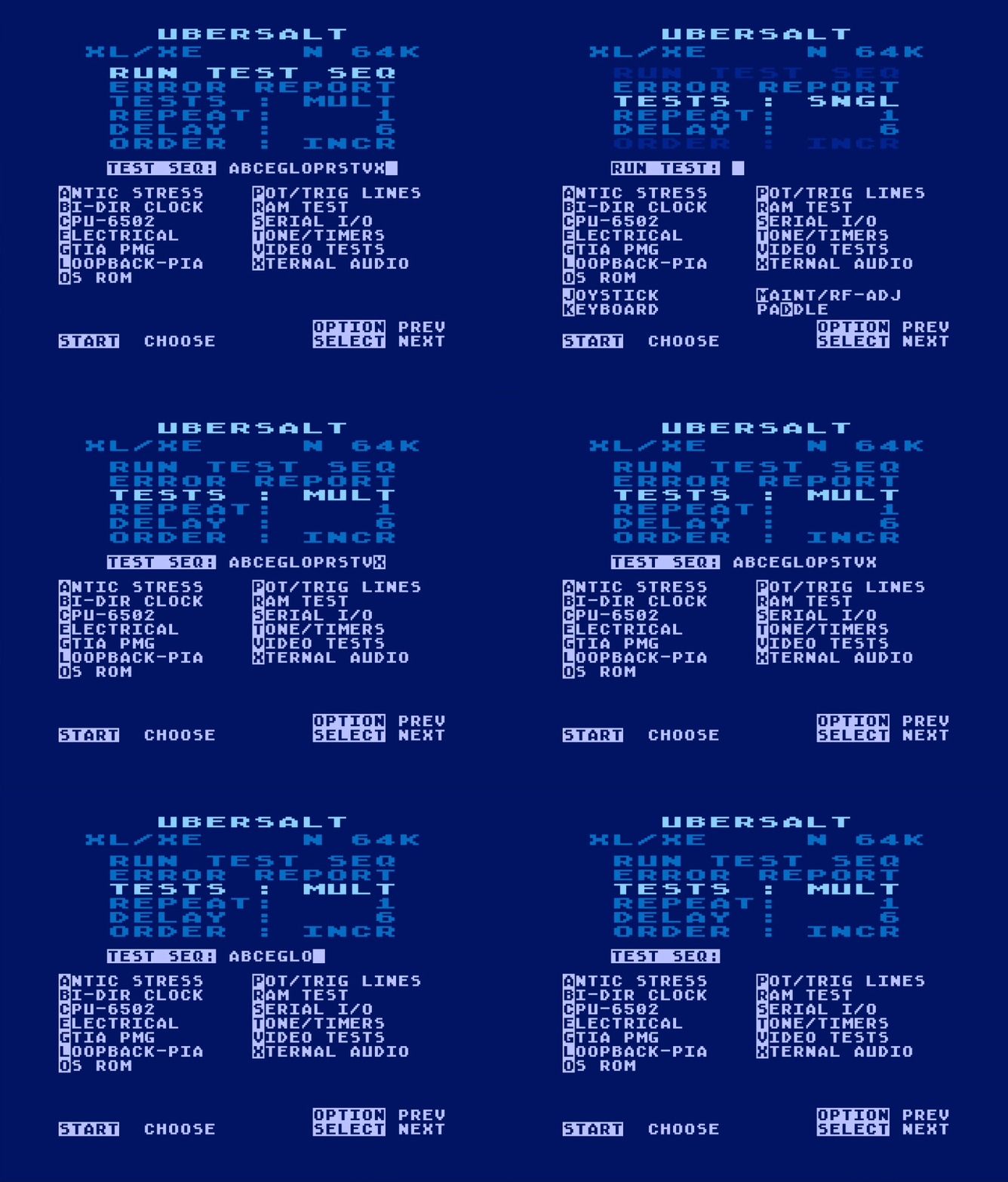
Test Sequence
UberSALT executes its diagnostic test suite according to a test sequence. Each character in the sequence corresponds to a diagnostic test listed immediately below the prompt. One complete execution of the sequence is called a ROUND. The default sequence is ABCEGLOPRSTVX when a test assembly is recognized, or ACGORTV otherwise.
Enter the desired test sequence at the TEST SEQ: prompt using the editor functions outlined in table 3-2. If the sequence is empty, pressing START restores and runs the default sequence, while RETURN restores it for editing or review.
Tests execute from left to right unless ORDER is set to SHFL (shuffle). A sequence may contain up to fourteen entries, although only thirteen unique tests are available. Duplicate entries are permitted but may distort Error Report statistics because some tests execute more frequently than others within a ROUND.
Table 3-2. Test Sequence Editor
| Input Key | Function |
|---|---|
| A B C E…X | Inserts the corresponding test identifier at the cursor. |
| ← → | Use the arrow keys to navigate through the test sequence string. |
| BACKSPACE | Removes the sequence character to the left of the cursor. |
| CTRL+BACKSPACE | Removes the sequence character at the cursor position. |
| RETURN | Runs the entered test sequence. If blank, restores the default sequence without running it. |
Changes to the test sequence take effect immediately and persist throughout the diagnostic session, including when switching between MULT and SNGL modes.
Single Test (SNGL)
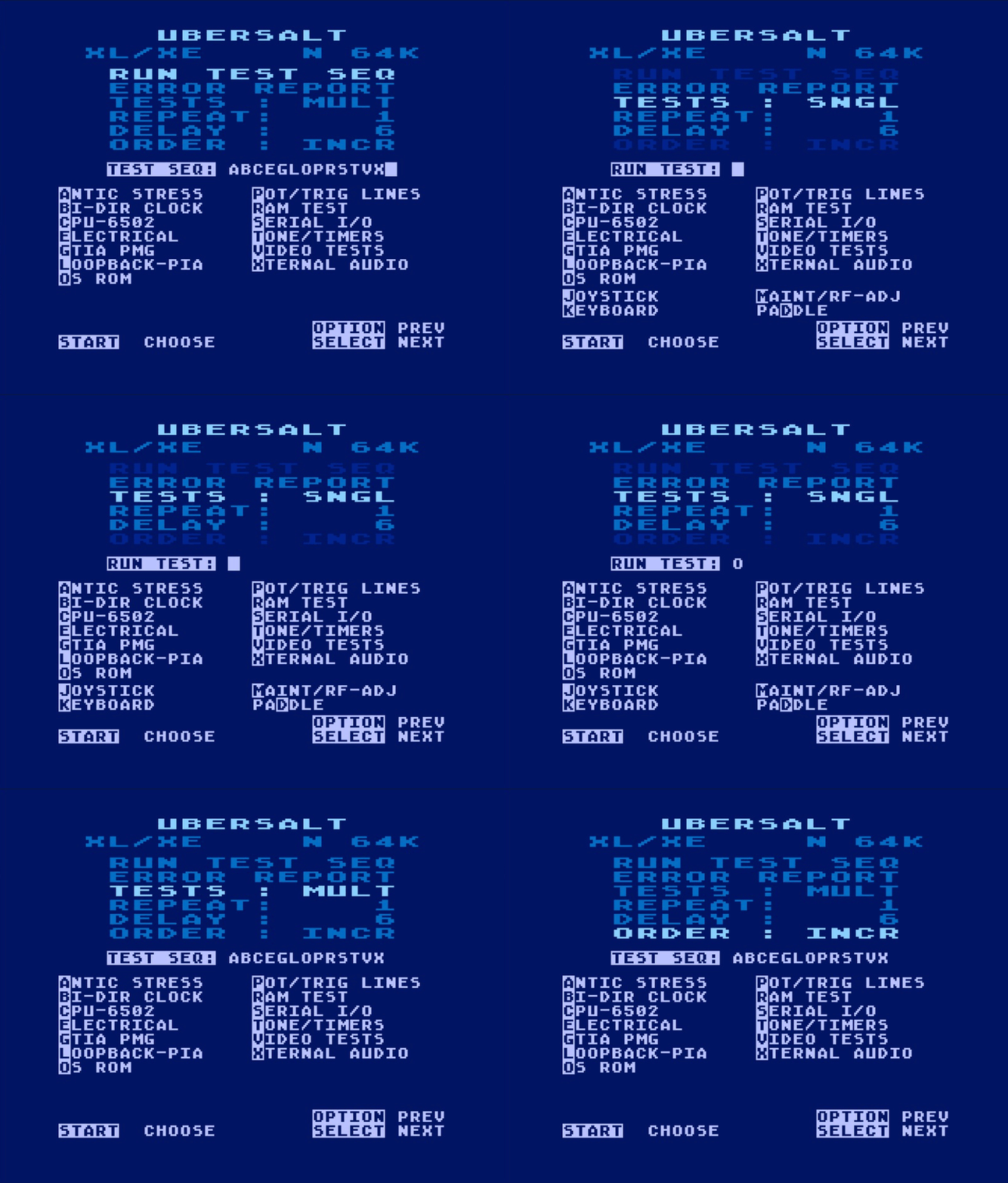
Selecting the SNGL setting enables individual selection of tests and utilities and displays the RUN TEST: prompt. Diagnostic tests use the current REPEAT and DELAY settings; ORDER and RUN TEST SEQ are dimmed because they do not apply (see figure 3-3).
Press the identifying key for a test or utility from the list below the RUN TEST: prompt to launch it immediately. After a test finishes, its identifying character remains beside the prompt. Press RETURN to repeat the test, or select another by its key.
Figure 3-3. Single Tests
Test Configuration
The configuration options provide additional control over how testing proceeds. REPEAT and DELAY apply to both test modes, while ORDER applies only to MULT mode.
Repeat Option
The REPEAT option determines how many times the selected test or test sequence is executed. In MULT mode, the Error Report is displayed after the selected number of rounds is completed. A setting of INF continues testing indefinitely until manually interrupted by the operator.
Delay Option
The DELAY option sets the transition time between most diagnostic tests and certain intermediate test displays. Select 2, 4, 6, 8, 10, 12, or 14 seconds, or RTN to wait for RETURN instead of advancing automatically.
Order Option
The ORDER option controls how the test sequence runs in MULT mode. INCR executes tests in the order entered at the TEST SEQ: prompt, from left to right. SHFL shuffles the execution order for each ROUND, running every sequence entry once before beginning the next ROUND. This can help reveal intermittent faults that depend on which tests run before or after one another. ORDER is dimmed in SNGL mode because it does not apply to individual tests.
4. Test Operation
Many tests tabulate their results, accumulating cycle and error counts and, where applicable, additional failure information for later review in the Error Report. Other tests provide only immediate feedback and do not maintain tabulated results. Tabulated results are retained across successive test runs until UberSalt is reinitialized.
UberSalt also maintains UPTIME and BURNIN elapsed-time counters during operation. UPTIME records the total time, in minutes, elapsed since UberSalt was initialized. The BURNIN timer records only time spent actively testing and accumulates across successive test runs. Both timers display 10K+ after exceeding 9,999 minutes.
Transition Controls
The DELAY setting determines the interval between tests, indicated by the RETURN NEXT prompt in most test footers. During this interval, the controls listed in table 4-1 are available, although not all are displayed in the footer due to limited space.
Table 4-1. Transition Controls
| Console | Function | Description |
|---|---|---|
| OPTION | Pause/Preview | When held between tests, pauses the test sequence and opens the Error Report upon release. |
| SELECT | Pause/Resume | Holds the transition between tests while pressed; advances to the next test immediately upon release. Only in effect when DELAY is not set to RTN. |
| BREAK | Exit | Aborts the active test sequence and returns to the Main Menu. Some tests respond only at designated checkpoints, so the action may not take effect immediately. |
Burn-In Operation
Burn-in testing involves operating a computer through repeated diagnostic tests over an extended period to identify intermittent or temperature-dependent faults that may not appear during shorter tests. UberSALT tracks the approximate accumulated time spent actively testing using its BURNIN timer, which can be viewed in the Burn-In Status Footer or the System Overview page of the Error Report.
BURNIN provides an approximate measure of accumulated testing time, excluding time spent at the Menu or reviewing the Error Report. Certain diagnostic tests temporarily suspend the system clock, so the displayed time may be less than the actual elapsed testing time.
Burn-In Status Footer
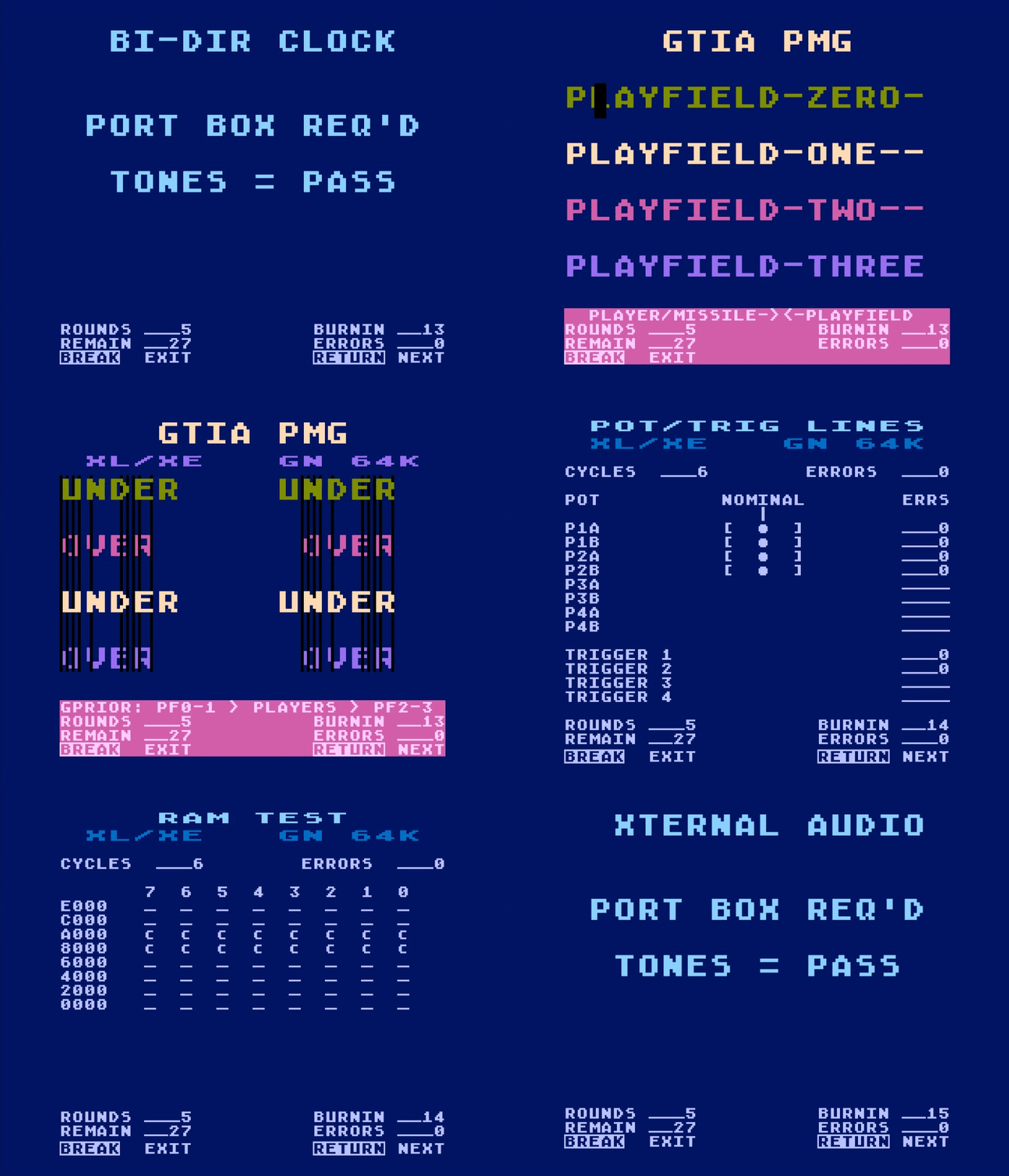
The Burn-In Status Footer appears on many test screens (see figure 4-1) except when the REPEAT setting is set to 1. In MULT mode, the footer displays ROUNDS, ERRORS, REMAIN, and BURNIN. ROUNDS shows the total number of test sequences completed since initialization, while REMAIN indicates how many ROUNDS remain under the current REPEAT setting. ERRORS is the total number of errors detected across all testing since initialization.
In SNGL mode, UPTIME replaces ROUNDS; the remaining fields are unchanged.
Figure 4-1. Burn-In
Error Report Overview
The Error Report provides a cumulative record of diagnostic results collected since UberSalt was initialized (see figure 4-2). It consists of a System Overview followed by nine detail pages containing results for the individual diagnostic areas.
Figure 4-2. Error Report
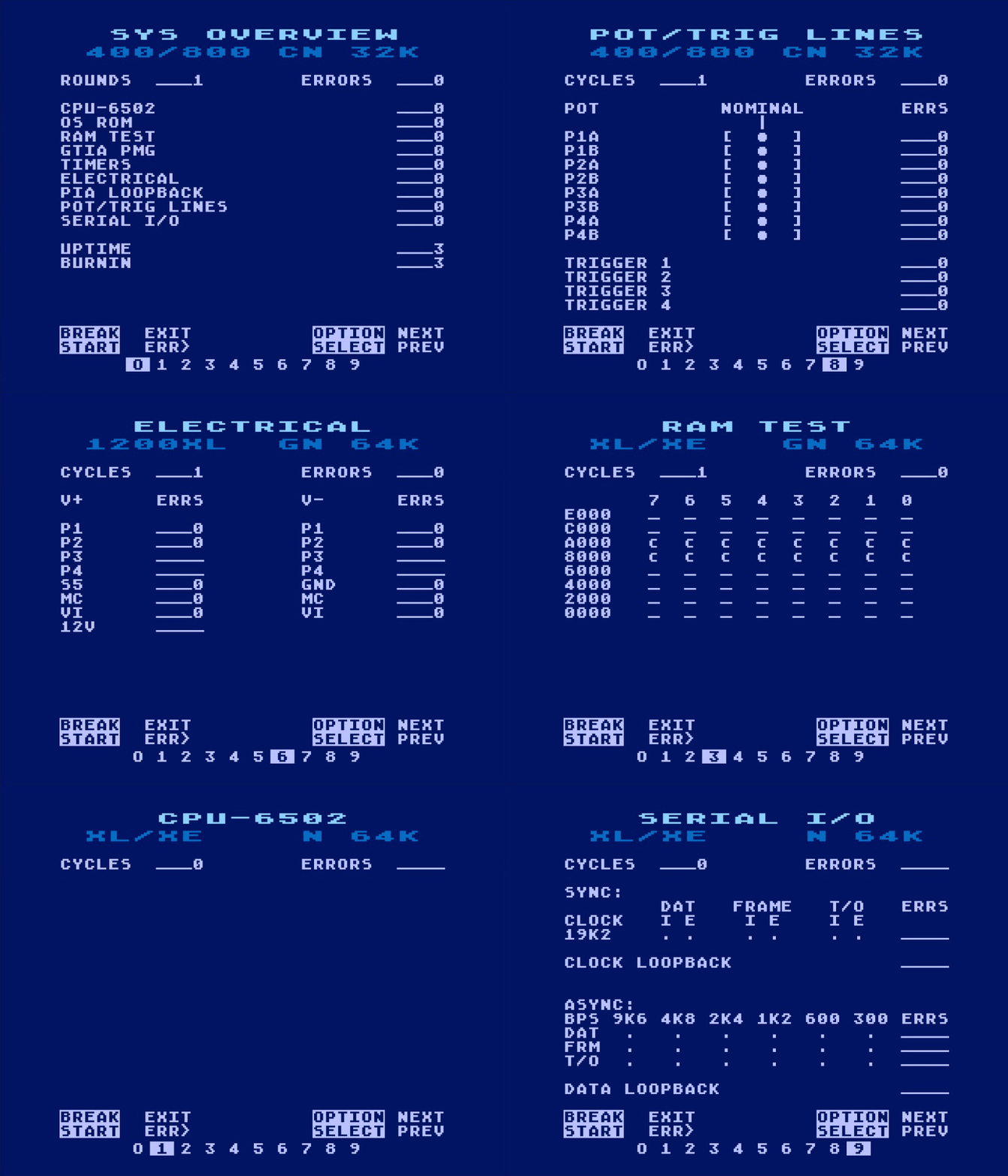
For navigation instructions and guidance on interpreting diagnostic results, refer to the Error Report section.
Quick-Start Shortcuts
UberSalt provides several quick-start shortcuts that immediately start commonly used diagnostic configurations while bypassing the Main Menu. The available shortcuts and their corresponding settings are listed in table 4-2.
To use a quick-start shortcut, hold the indicated console key combination while powering on or resetting the computer. Continue holding the key(s) until the UberSalt splash screen appears. The splash screen provides an opportunity to verify that the test assembly and other supported diagnostic hardware have been detected, where applicable. Release the console keys when ready; the selected quick-start options are set automatically and testing begins immediately.
Table 4-2. Quick-Start Shortcuts
| Shortcut | Delay Option | Repeat Option | Order Option |
|---|---|---|---|
| OPTION | 06 | 1 | INCR |
| SELECT | 02 | 128 | INCR |
| OPTION+SELECT | 02 | INF | SHFL |
| Note: START may be held in addition to any Quick-Start key combination to force SSA detection when required. | |||
5. UberSalt Diagnostic Tests
This section describes each diagnostic test, including its purpose, operation, and any special requirements or observations necessary to interpret the display. Each test heading includes its Error Display Board (EDB) hexadecimal code in brackets. The EDB retains the hex code of the last test initiated, allowing the operator to identify which test was running if a system crash renders the computer’s display unusable.
Result Reporting
Most automated diagnostic tests accumulate results for later review in the Error Report. Their individual test screens may display either results from the current execution or cumulative results from the diagnostic session, as described in the respective test sections below.
The following tests and subtests instead require operator verification while testing is in progress and do not contribute results to the Error Report:
- ANTIC Stress Test
- Bi-Dir Clock Test
- GTIA PMG: Phase 3
- Tone/Timers: Voice Subtests
- Video Tests
- Xternal Audio Test
[10] ANTIC Stress Test
The ANTIC Stress Test verifies operation of the ANTIC chip by exercising a range of ANTIC display modes. As shown in the animated display in figure 5-1, the operator determines whether the test passes by confirming that the display behaves as shown. The specific colors are not significant, but colors should be uniform within each display element. Correct appearance and operation of all display elements are required.
Figure 5-1. ANTIC Stress Test
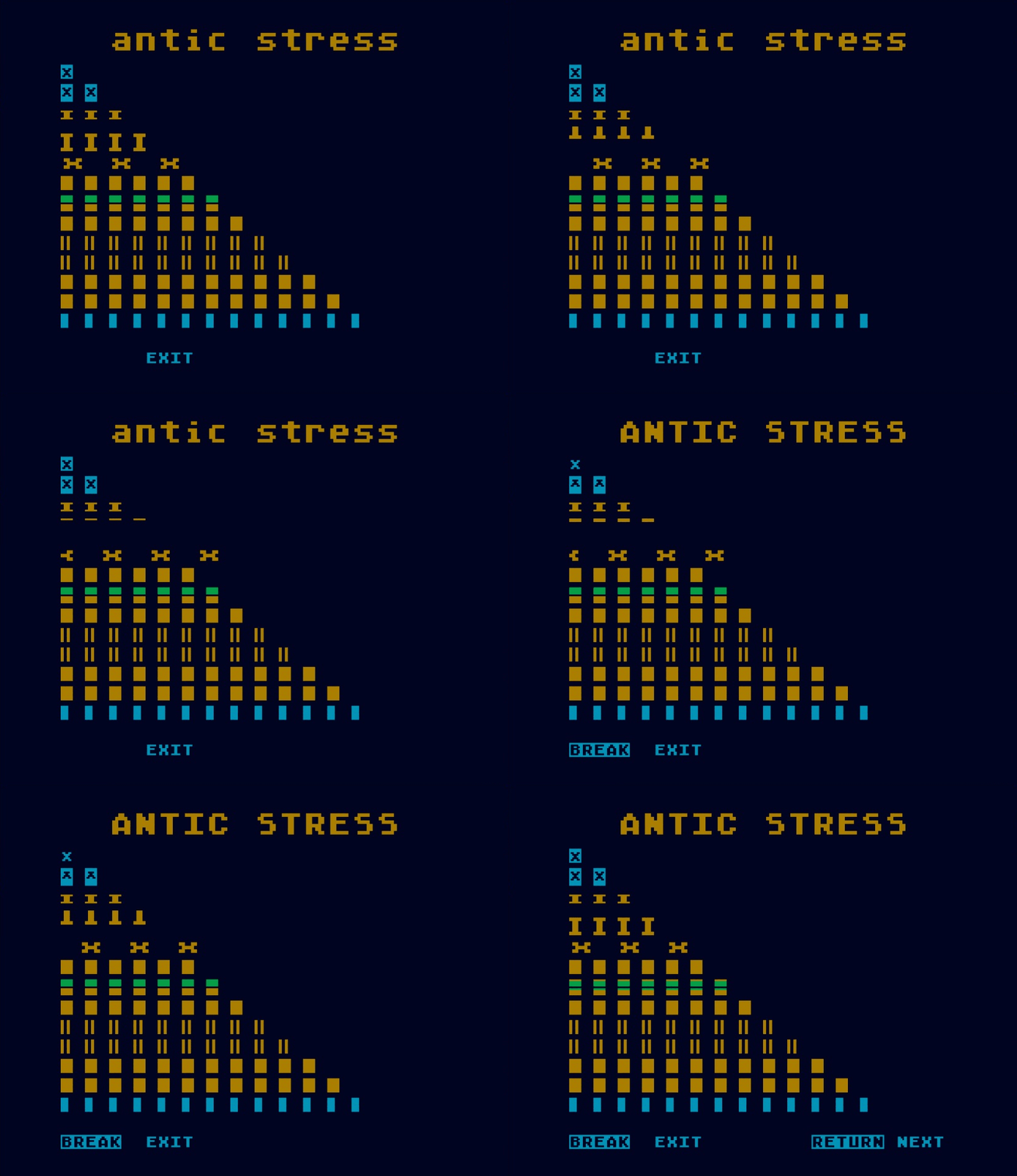
Color Verification and Adjustment
- Allow the computer to warm up for at least 15 minutes.
- Compare the color bar immediately above the gray reference bar with the single color bar below it.
- If necessary, adjust the GTIA color potentiometer until the two bars are identical.
- Verify that each color bar is uniform across its entire width. Minor edge glitches are acceptable.
Troubleshooting: If the colors cannot be matched or the display contains missing bars or little to no color, verify the color adjustment before suspecting faulty GTIA or ANTIC circuitry. An incorrect or defective color crystal (Y1) may also produce incorrect colors.
[20] Bi-Dir Clock Test
The Bi-Dir Clock Test verifies operation of the serial port’s bidirectional clock line. The POKEY outputs a short 8-note melody on this line, which the port box routes to the computer serial port’s audio input. As indicated in figure 5-2, hearing the melody through the A/V monitor or TV confirms that the computer is capable of driving the clock line.
Figure 5-2. Bi-Dir Clock Test
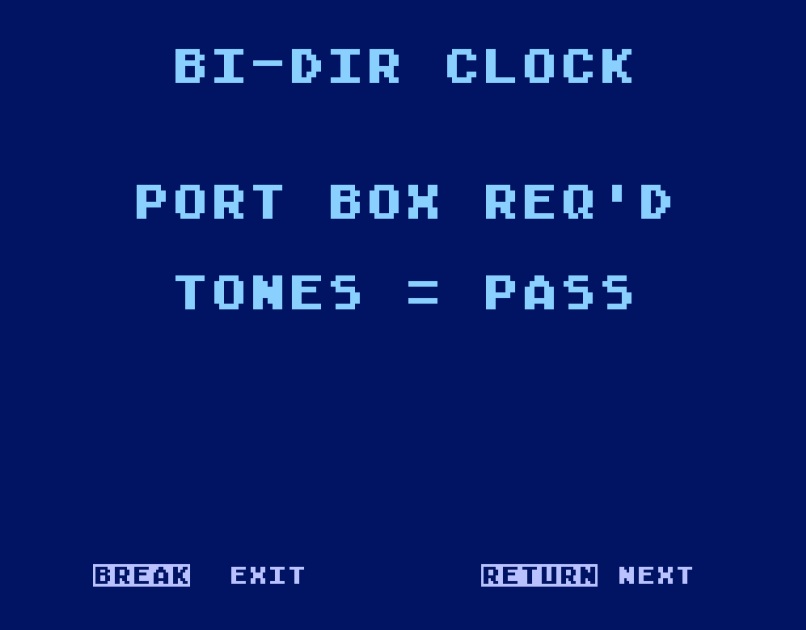
Troubleshooting: If the melody is faint or not heard, verify the port box tone switch position, all port box and A/V cable connections, and the TV/monitor volume before troubleshooting the computer. These conditions are the most common causes of this symptom.
[30] CPU-6502 Test
The CPU-6502 test verifies CPU operation by executing all 151 operation codes. Each test pass executes the 6502 opcode test 100 times and displays the current iteration and error count, as shown in figure 5-3.
Accumulated test cycles and errors are recorded in the CPU-6502 Report.
Figure 5-3. CPU-6502 Test
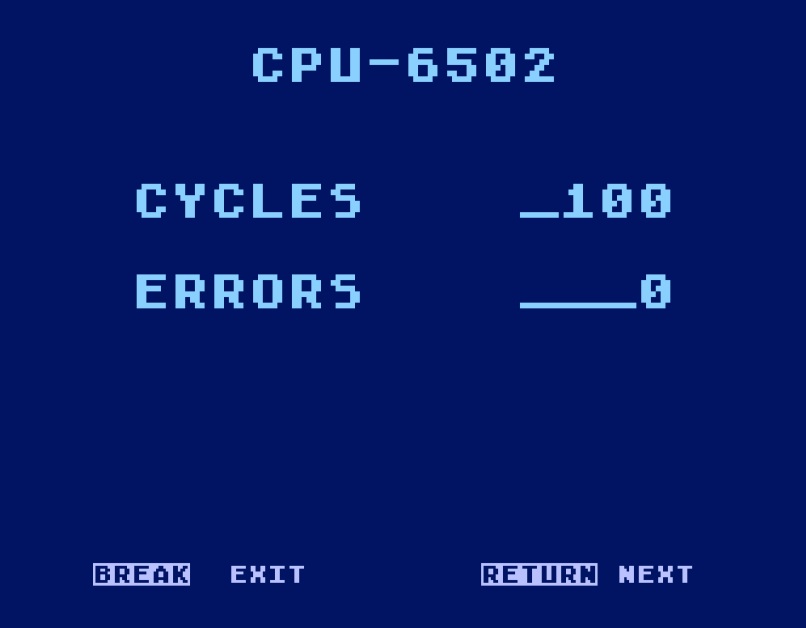
Troubleshooting: A detected error may result from faulty low-memory RAM rather than the CPU. Run the RAM Test to verify memory operation before replacing the 6502. A severe CPU or related hardware fault may prevent the test from completing and cause the computer to lock up.
[40] Electrical Test
The Electrical Test uses the Analog-to-Digital Converter (ADC) in the port box to measure each controller port’s +5V line (Pn+) and ground line (Pn-). The port box also verifies the SIO Motor Control line by measuring it under load in both its high (MC+) and low (MC-) states.
The Electrical Test screen displays measurements from the current test execution (see figures 5-4, 5-5, and 5-6). Measurements within acceptable limits are displayed in green, while those outside the limits are displayed in red. These results are not cumulative; however, detected failures are accumulated in the Electrical Report. The corresponding voltage limits are provided in table 5-1 for reference.
Figure 5-4. Atari 400/800 Voltage Test
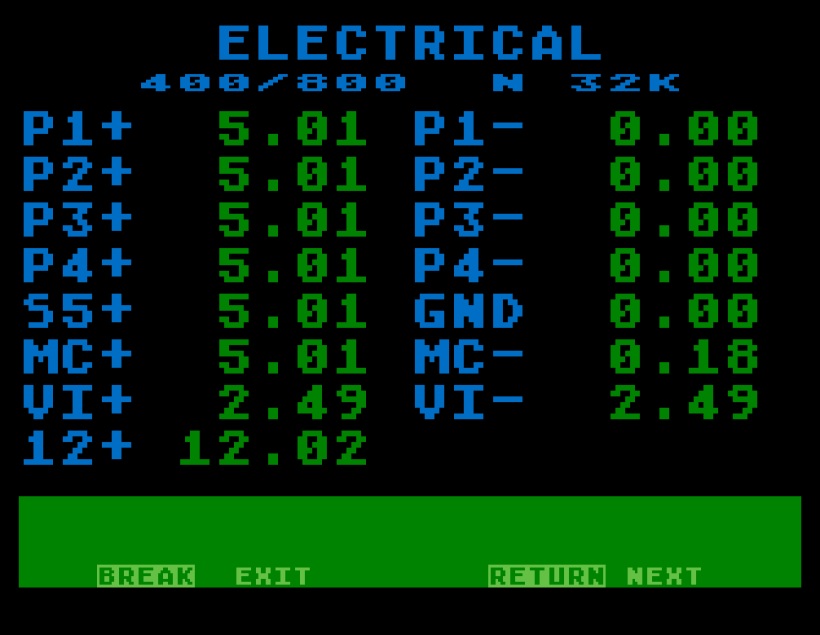
Figure 5-5. Atari 1200XL Voltage Test
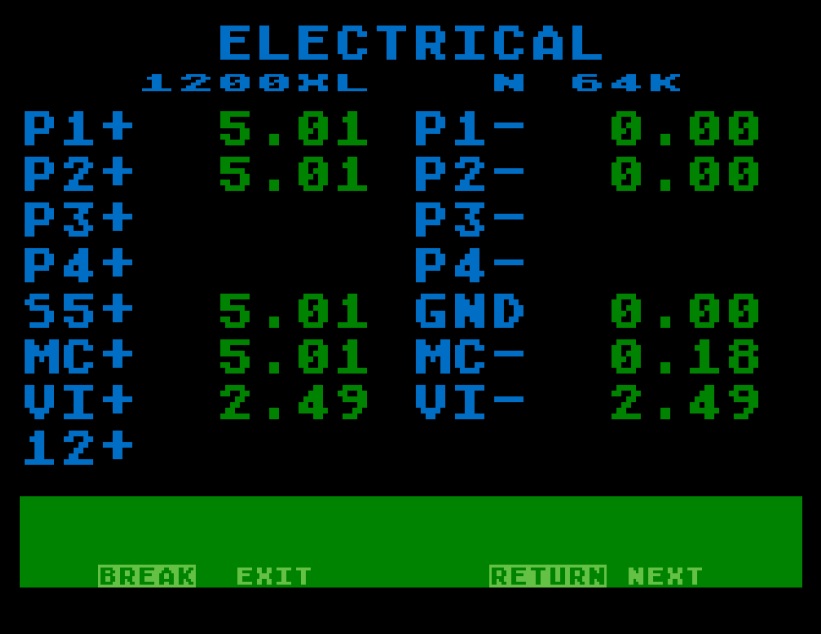
Figure 5-6. Atari XL/XE Voltage Test
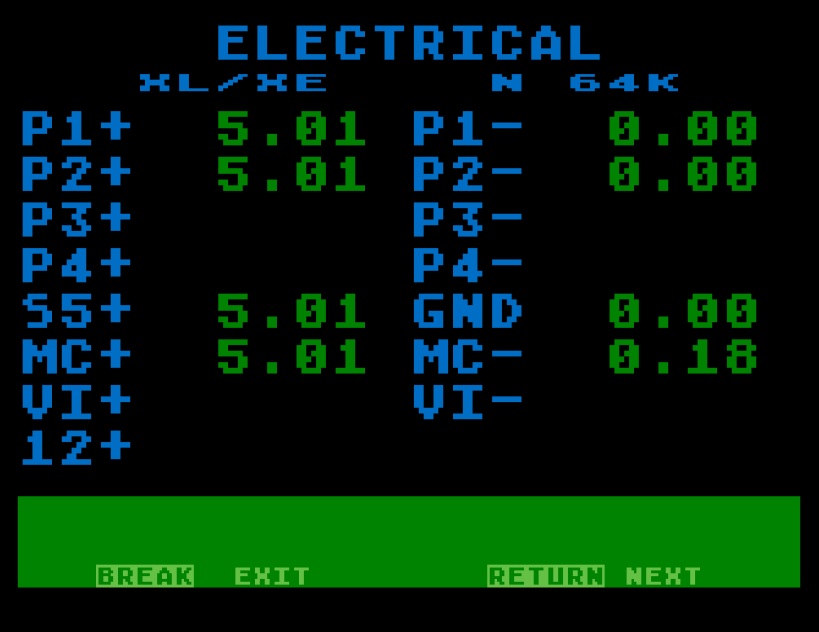
Table 5-1. Voltage Test Limits
| Parameter | Low Limit | High Limit | Description |
|---|---|---|---|
| P1~P4+ | +4.753V | +5.247V | Controller port +5V line. |
| P1~P4- | +0.00V | +0.729V | Controller port GND line. |
| S5+ | +4.753V | +5.247V | SIO port +5V line. |
| GND | +0.00V | +0.188V | SIO port GND line. |
| MC+ | +2.871V | +5.247V | Motor Control line, high. |
| MC- | +0.00V | +0.729V | Motor Control line, low. |
| VI+ | +0.941V | +4.047V | Current draw indicator, positive phase. |
| VI- | +0.941V | +4.047V | Current draw indicator, negative phase |
| 12+ | +11.407V | +12.480V | SIO port 12V line |
VI+ and VI− are relative indicators of computer current consumption, with 2.50 representing the nominal reading for a healthy, unmodified 48K Atari 800 at idle. The +12V line (12+) normally applies to the 400/800. However, 1200XL computers are sometimes modified to provide +12V and otherwise operate more like an 800XL. To accommodate these configurations, UberSalt automatically measures and displays these normally omitted readings whenever they exceed a predefined detection threshold.
When testing computers of varying configurations, modest deviations from the 2.50 baseline are normal and may result from hardware upgrades, modifications, or memory configuration. However, large deviations or significant differences between VI+ and VI- may indicate abnormal current consumption.
Troubleshooting: If all or most voltage measurements fail, first verify that the port box is properly connected, powered, and configured before troubleshooting the computer. After correcting any setup problems, rerun the Electrical Test.
Important Note: Voltage failures will occur when using legacy Atari diagnostic software with the Error Display enabled.
[5x] GTIA PMG Tests
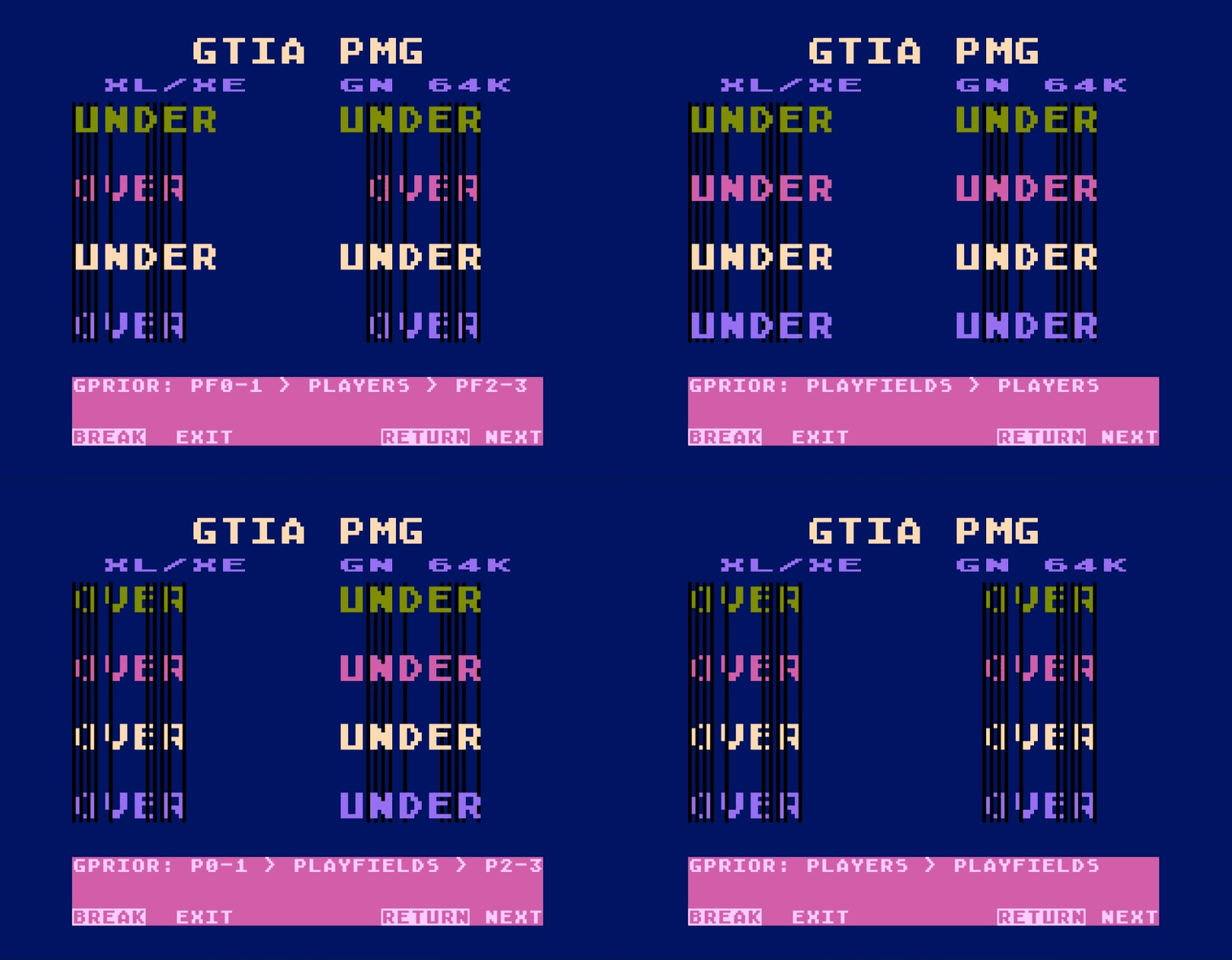
The GTIA PMG test comprehensively exercises the GTIA by verifying Player/Missile Graphics (PMG), playfield priority, and collision-detection functions. The test is performed in three phases, shown in figures 5-7, 5-8, and 5-9. The software automatically verifies collision detection during the first two phases, recording failures for review in the GTIA PMG Report of the Error Report. The third phase requires the operator to observe and confirm that the graphics appear and behave as described. The third phase requires the operator to observe and confirm that the graphics appear and behave as described.
[50] GTIA Phase 1: PMG Sizing, Motion & Playfield Collisions
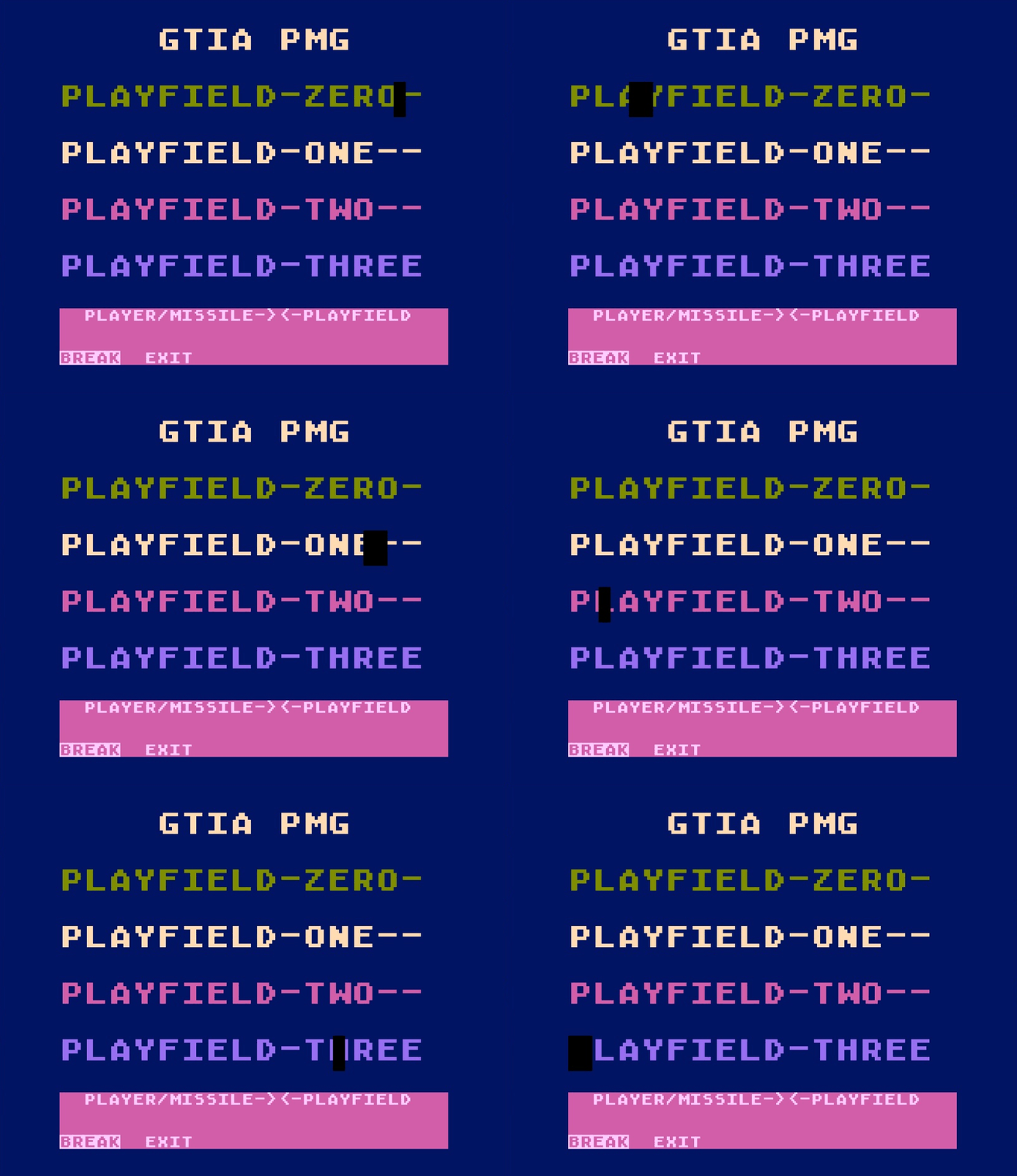
As shown in figure 5-7, four horizontal playfields labeled PLAYFIELD ZERO through THREE span the screen while groups of player- and missile-generated rectangles move between them. This phase verifies player and missile sizing and movement, and exercises the GTIA playfield-collision registers as the objects traverse each of the four playfields. When a collision is detected, the software verifies that it is attributed to the correct playfield. This phase also detects whether the graphics chip is GTIA or CTIA and updates the computer info banner.
Figure 5-7. GTIA PMG Phase 1
[51] GTIA Phase 2: PMG Collision Detection
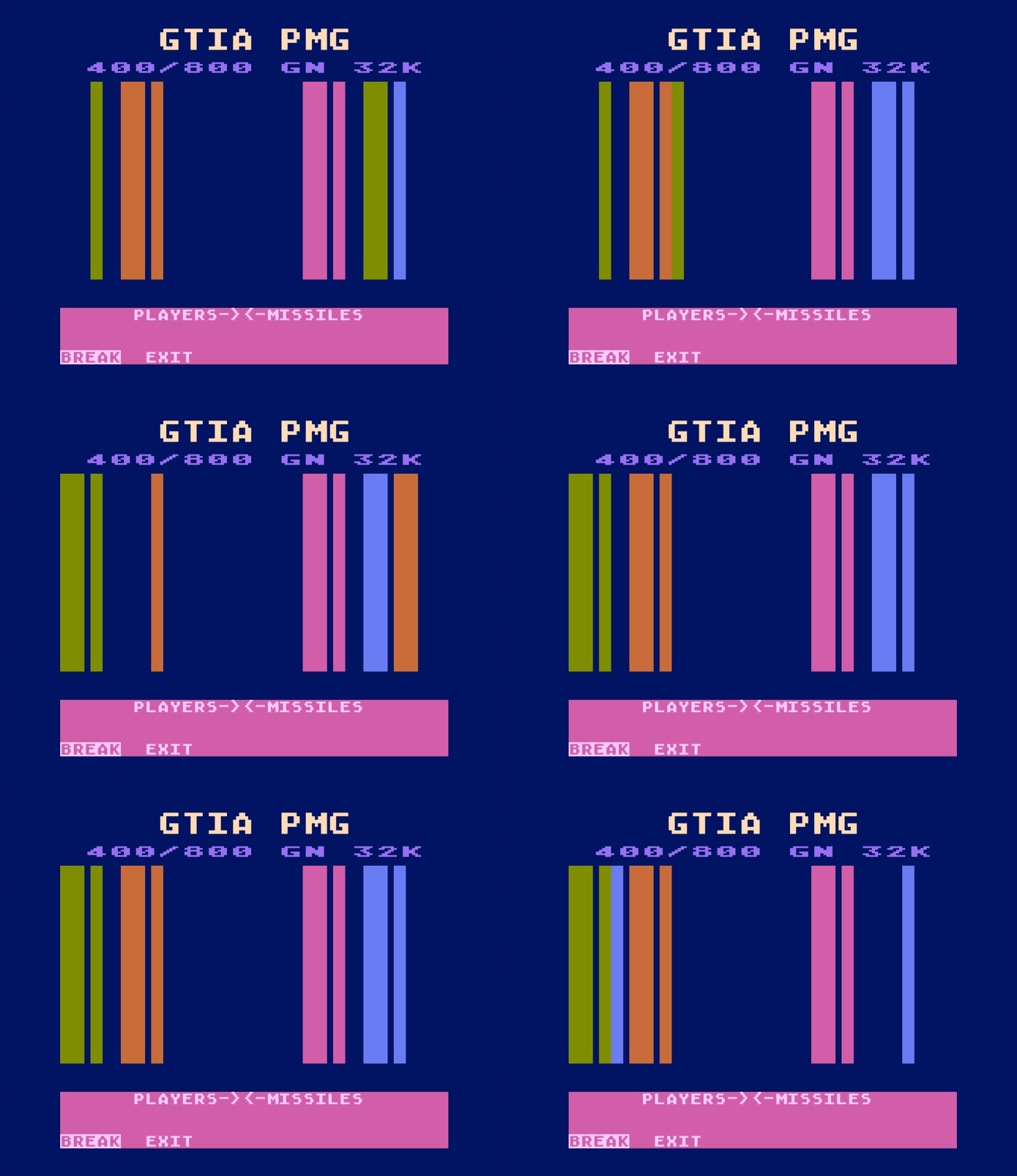
Figure 5-8 shows two groups of rotating vertical bars. The narrow bars represent missiles, while the wide bars represent players. Each player is moved through the player and missile positions to exercise the player-to-player and missile-to-player collision registers and verify that reported collisions are attributed to the correct player.
Figure 5-8. GTIA PMG Phase 2
[52] GTIA Phase 3: PMG/Playfield Priority
The operator determines whether the test passes by confirming that the displayed priority relationships match those described in the top row of the footer.
Figure 5-9 verifies GTIA display priority by displaying the words UNDER and OVER intersected by vertical bars. The words indicate the expected priority of the vertical bars relative to the text. Accordingly, the bars should appear behind the word UNDER and in front of the word OVER. The text window at the bottom of the screen identifies the player and playfield priority relationship currently being verified.
Figure 5-9. GTIA PMG Phase 3
Troubleshooting: Missing or malformed graphics, incorrect player or missile sizing, improper movement, incorrect priority relationships, or collision-identification failures indicate a problem with the GTIA or its associated circuitry.
[60] Loopback-PIA Test
The Loopback-PIA Test verifies the controller-port data lines as well as the PIA control lines connected to the SIO port. The port box connects these lines into loopback paths, allowing the computer to send a signal through one line and read it back through another.
On 400/800 computers, each Port A data line connects to the corresponding Port B line. On XL/XE computers, the lower four Port A lines connect to the upper four Port A lines, as shown in table 5-2. Each XL/XE connection appears twice in the table because both endpoints are Port A lines.
Table 5-2. PIA Loopbacks
| PIA Line | 400/800 Loopback | XL/XE Loopback |
|---|---|---|
| PA0 | PB0 | PA4 |
| PA1 | PB1 | PA5 |
| PA2 | PB2 | PA6 |
| PA3 | PB3 | PA7 |
| PA4 | PB4 | PA0 |
| PA5 | PB5 | PA1 |
| PA6 | PB6 | PA2 |
| PA7 | PB7 | PA3 |
| CA1 (SIO Proceed) | CA2 (SIO Motor Control) | |
| CB1 (SIO Interrupt) | CB2 (SIO Command) | |
For both computer families, each data-line connection is tested in both directions. UberSALT configures one side as outputs and the other as inputs, writes every possible data pattern, and checks that the received values match. It then exchanges the input and output roles and repeats the checks. The control-line loopbacks are tested similarly, by driving CA2 and reading CA1, and by driving CB2 and reading CB1. However, these lines have fixed input/output roles and are tested only in those directions.
Figure 5-10. Loopback-PIA Test
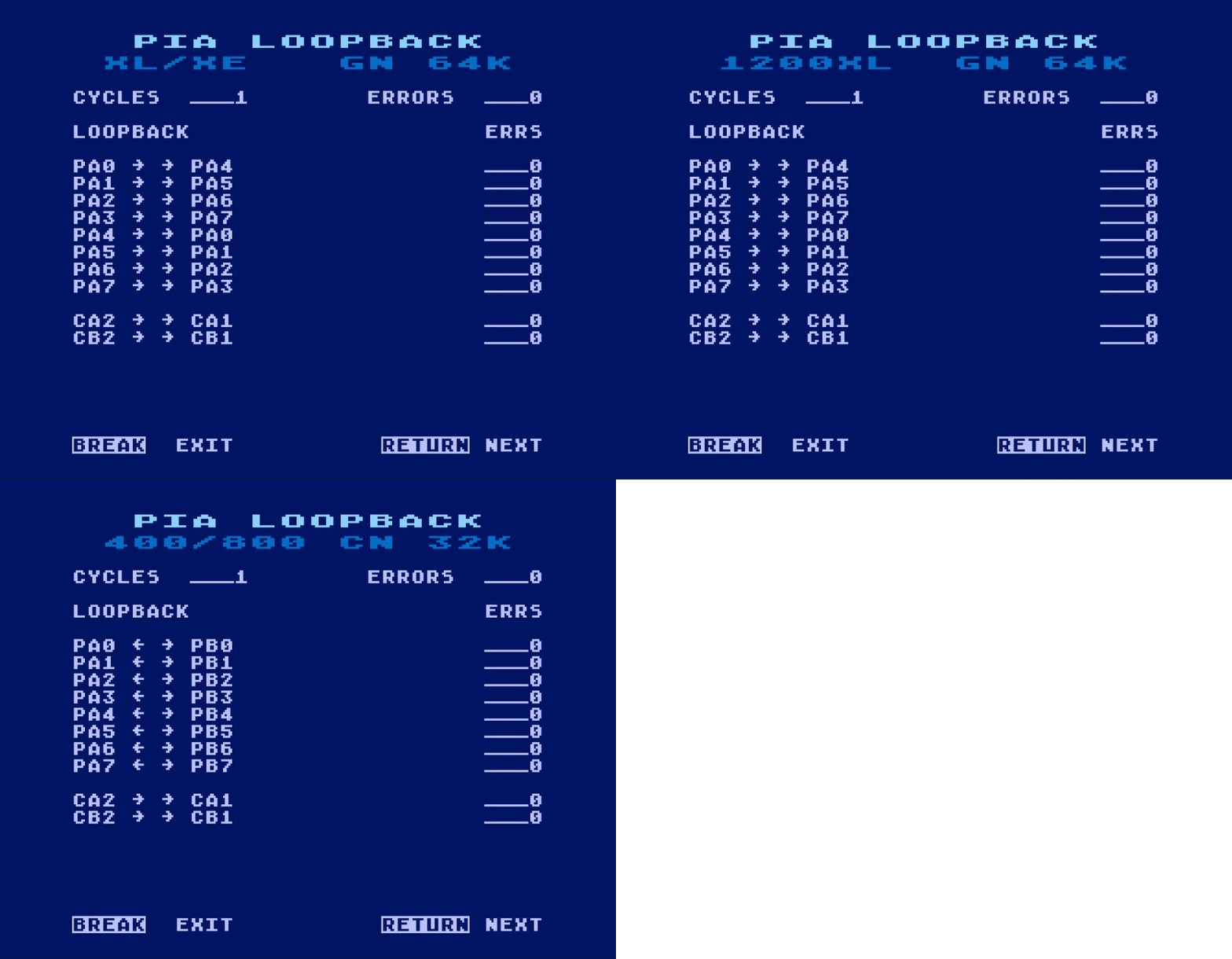
The Loopback-PIA Test screen, shown in figure 5-10, displays cumulative results for the current diagnostic session, rather than results from the most recent execution alone. More detailed information is available in the PIA Loopback Report.
[7x] OS ROM Test
The OS ROM Test verifies the integrity of the system ROMs by calculating a checksum for each ROM and comparing it to the checksum value stored within the ROM. The READ and CALC fields display the checksum values from the current test, allowing the operator to compare the actual results directly. Matching values indicate a pass; a mismatch is recorded as an error and may indicate a fault in the ROM or associated circuitry.
Accumulated test cycles, errors, and retained checksum values are recorded in the OS ROM Report.
Table 5-3 identifies the address ranges contributing to each checksum, providing a reference for isolating ROM-related faults.
Table 5-3. OS ROM Checksum Address Ranges
Checksum | Atari 400/800 | Atari XL/XE |
|---|---|---|
| HIGH | $F000-$FFFF | $E000-$FFFF |
| LOW | $E000-$EFFF | $C000-$CFFF, $D800-$DFFF, $5000-$57FF |
| MATH | $D800-$DFFF | N/A |
On XL/XE computers, the $5000–$57FF range contains the 2 KB Self-Test ROM, temporarily mapped into that address space via PIA PORTB.
The minor EDB digit identifies the 4 KB address region currently being read for checksum calculation. For example, [7F] indicates that the OS ROM Test is reading the $F000–$FFFF region.
Figure 5-11. OS ROM Test
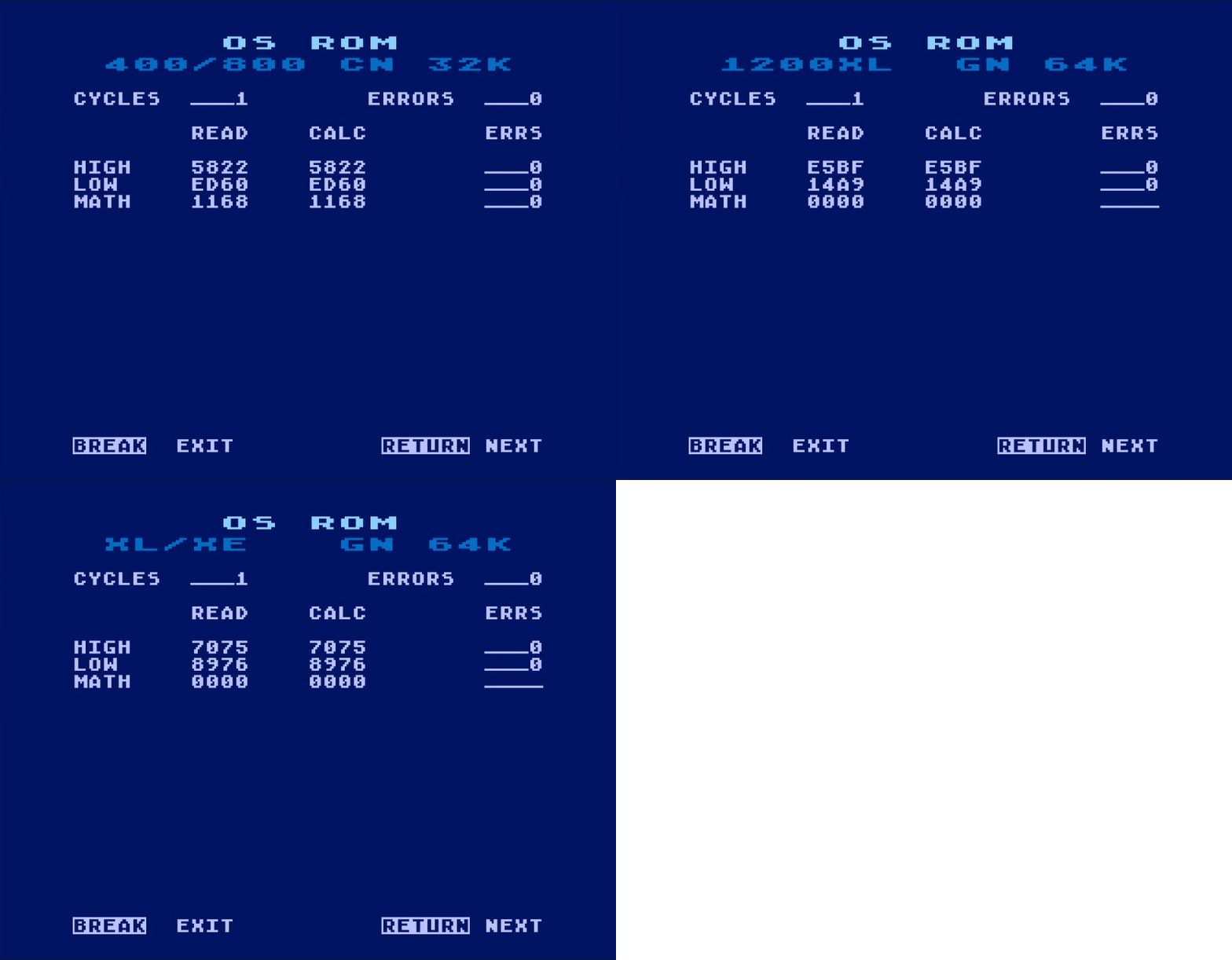
Note: XL/XE computers do not contain a separate MATH ROM. Accordingly, the MATH checksum fields display 0000, with the ERRS field displaying ____ to indicate an undefined result.
Note: Some functional aftermarket operating-system ROMs do not store their checksum values in the locations designated by Atari, or do not provide stored checksums at all. As a result, these ROMs may report checksum errors even though they are operating correctly. OMNIMON is one known example.
[80] Pot/Trig Lines Test
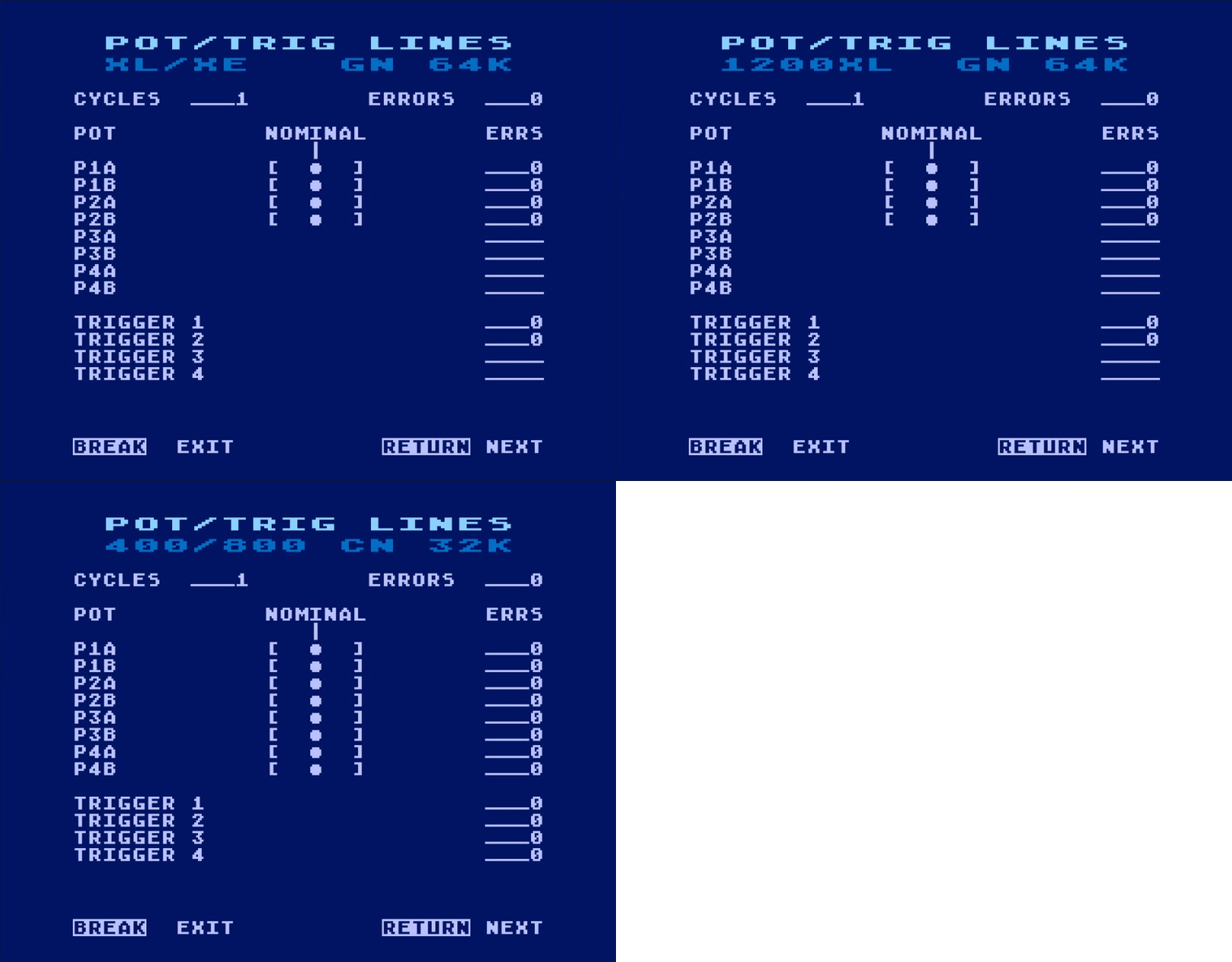
The pot lines are verified when each applicable controller-port potentiometer input produces a reading within the expected range when connected through the test assembly. All eight pot lines are tested on Atari 400/800 computers, while the four available pot lines are tested on XL/XE computers. A failure may indicate a fault in POKEY’s potentiometer-input circuitry, a controller-port connection, the connecting cables, or the test assembly itself. Details for interpreting the display can be found in the Pot/Trig Lines Report.
Trigger line functionality is verified when each applicable controller-port trigger input responds correctly in both states when driven through the test assembly. All four trigger lines are tested on Atari 400/800 computers, while the two available trigger lines are tested on XL/XE computers. A failure may indicate a fault in the computer’s trigger-input circuitry, the controller-port connection, the SIO Motor Control path used to operate the test assembly, or the test assembly itself. Detailed results are retained in the Pot/Trig Lines Report, where failures are identified by trigger line.
Figure 5-12 illustrates the Pot/Trig Lines Test screen, which displays cumulative results for the current diagnostic session rather than results from the most recent execution alone.
Figure 5-12. POT/Trig Lines Test
[9x] RAM Test
The RAM Test verifies all accessible base RAM using a series of diagnostic patterns designed to detect addressing, data, and memory-refresh faults. This includes RAM beneath the operating system ROM in XL/XE computers and the additional 4 KB base RAM in a 52 KB Atari 400/800.
The minor EDB digit identifies the 4 KB memory region currently being tested. For example, [9C] indicates that the RAM Test is examining the $C000–$CFFF region.
Note: The 16 KB of RAM from $8000–$BFFF cannot be tested while the UberSalt cartridge is installed. Extended or bank-switched memory is also outside the scope of the RAM Test.
During portions of the test, the display is temporarily blanked while memory used by the display and other normally protected regions is tested. The BREAK key is disabled during the blank-screen phase of the RAM test to prevent corruption of display memory. Test duration depends on the amount of installed RAM; a 48 KB system typically remains blank for approximately 33 seconds before the results screen appears (see figure 5-13).
Figure 5-13. RAM Test Screen
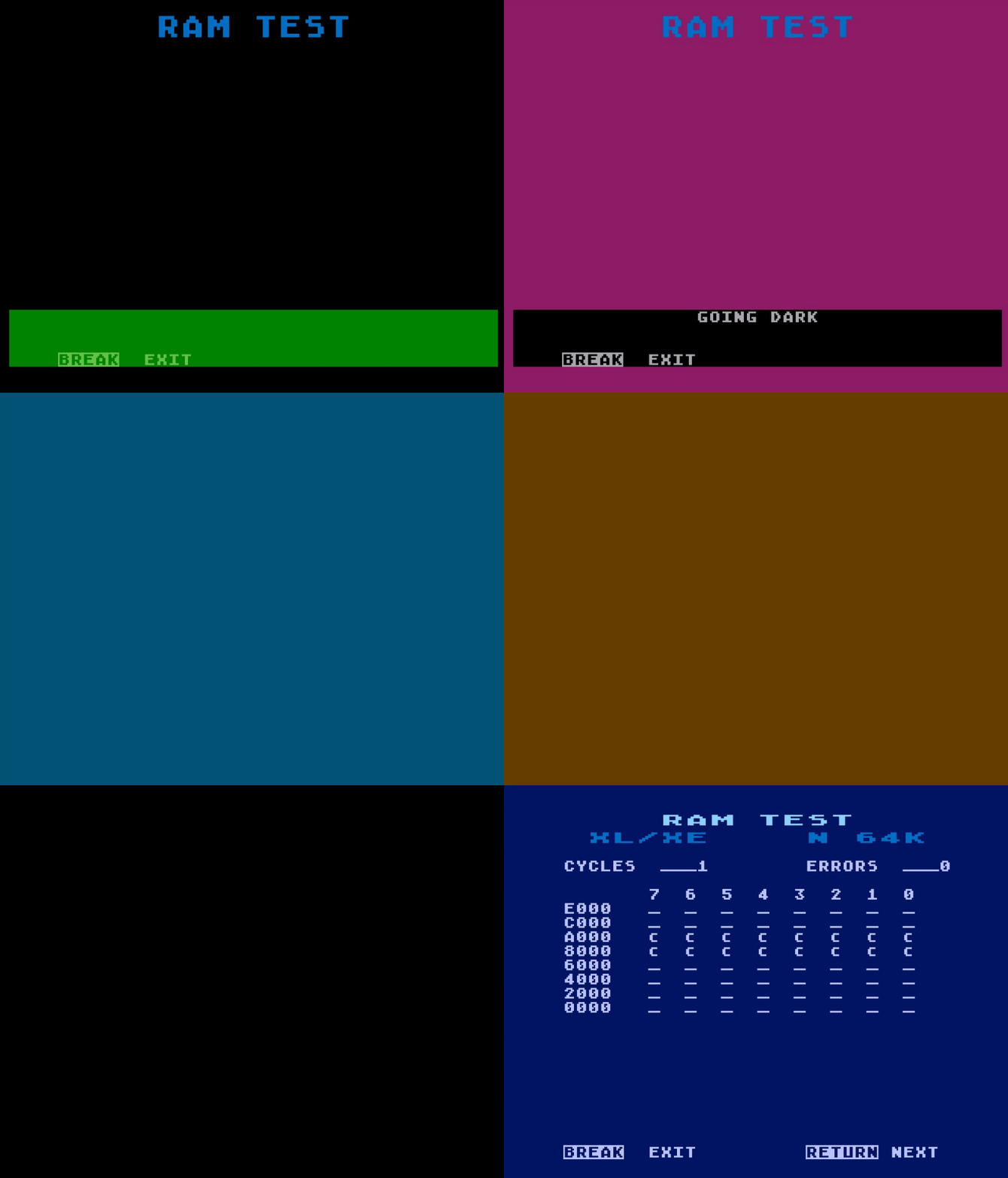
Note: Background colors rotate during the blank-screen period to indicate that the RAM Test is still running.
Upon completion, the RAM Test displays its cumulative results for the current diagnostic session in a memory-bank grid. See the RAM Test Report for an explanation of the grid and its indicators.
RAM Test Methods
The RAM Test performs the following diagnostic procedures:
- Marching 1s through memory to test internal chip decoding.
- Marching 0s through memory to test internal chip decoding.
- Fill memory with a variable data pattern.
- Fill memory with the complement of the previous pattern.
- Test with constant data patterns.
- Test with random data patterns.
- Verify memory refresh timing during the blank-screen interval.
[Ax] Serial I/O Test
The Serial I/O Test requires a test assembly to verify communication through the computer’s Serial Input/Output (SIO) port. Certain communication failures are retried to distinguish persistent faults from transient errors. A failure is recorded when the applicable retry limit is reached or a receive timeout occurs.
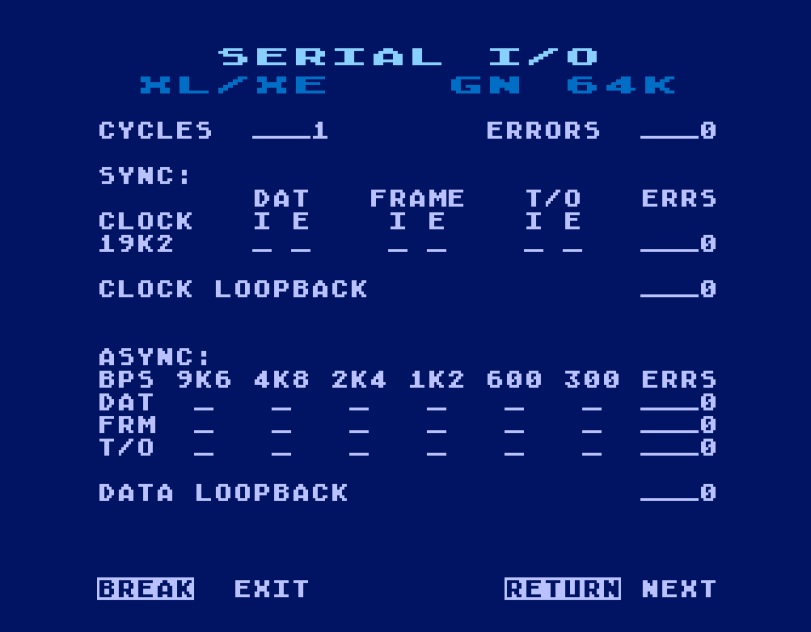
The results displayed on the Serial I/O Test screen, shown in figure 5-14, are cumulative for the current diagnostic session, rather than results from the most recent execution alone.
Figure 5-14. Serial I/O Test
[A0] Data & Clock Loopback Subtest
Tests the serial data and clock signal paths independently through loopback connections in the test assembly. Errors are accumulated separately for each path.
[A1] Asynchronous Serial I/O Subtest
Asynchronous reception is tested at six baud rates: 300, 600, 1200, 2400, 4800, and 9600. At each rate, the test assembly transmits a fixed $55 data pattern to the computer, which checks the received character for timeout, framing, and data errors.
[A2] Synchronous I/O Using UUT Clock Subtest
Tests synchronous transmission and reception at 19,200 baud using the clock generated internally by the computer under test (UUT).
[A3] Synchronous I/O Using External Clock Subtest
Repeats the synchronous transmission and reception test at 19,200 baud using the external clock supplied by the test assembly.
Detailed results are retained in the Serial I/O Report, where synchronous and asynchronous communication failures are identified by test configuration and error type.
[Bx] Tone/Timers Test
The Tone/Timers Test exercises the POKEY sound registers and timers.
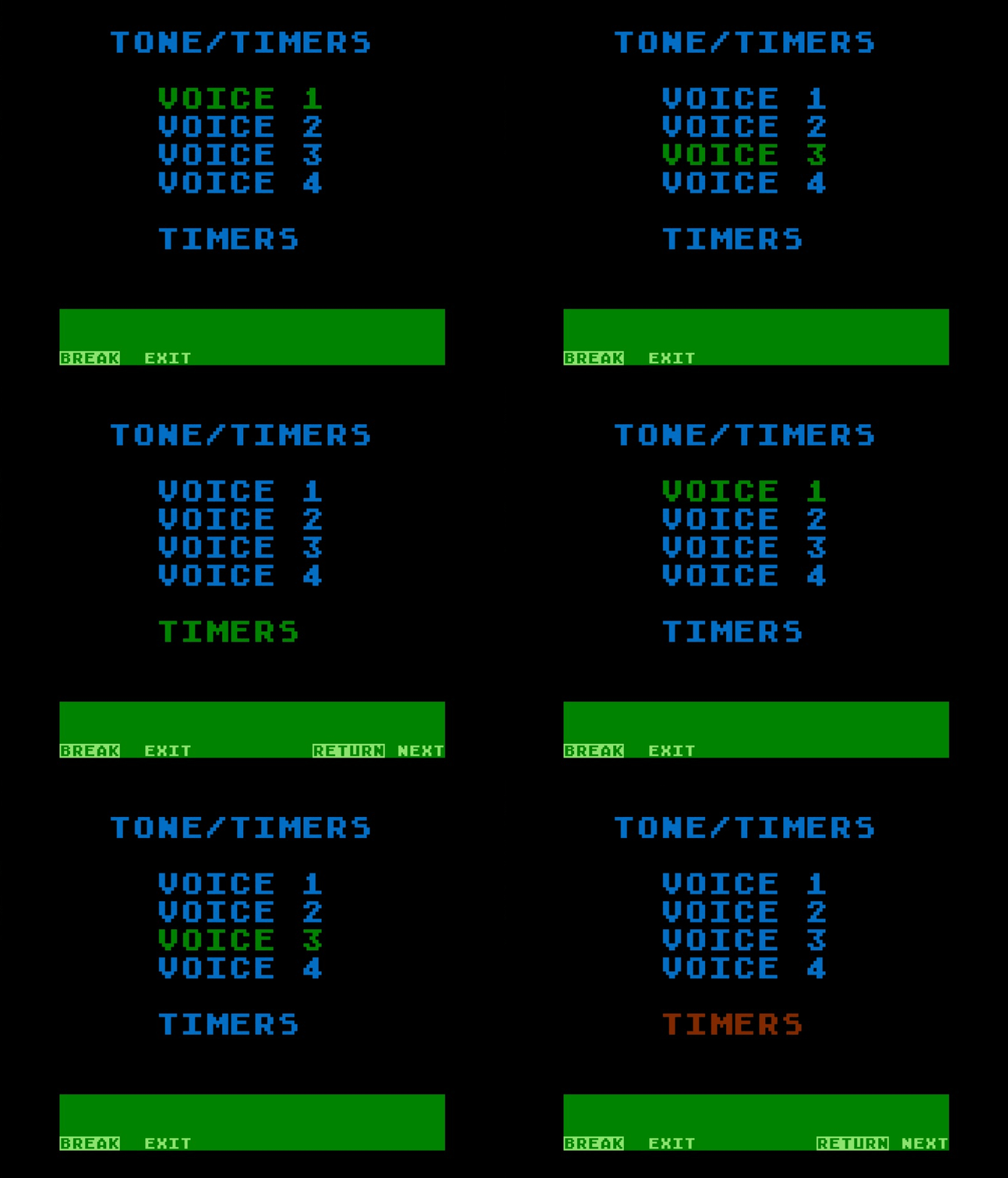
Figure 5-15. Tone/Timers Test
[B0-3] Voice Subtests
The Voice Subtests verify operation of the four POKEY sound registers by generating a descending sweep of tones through each register in succession. As each register is tested, its corresponding label is highlighted on the screen (figure 5-15). Brief pauses separate the tone sweeps, allowing the operator to distinguish between the four sound registers. Missing or incorrect tones may indicate a faulty POKEY chip or associated audio output circuitry. If the computer is connected to a television through the RF output, the 4.5MHz circuitry should also be considered as a possible cause.
[B4] Timers Subtest
The Timers Subtest verifies POKEY Timers 1, 2, and 4 by confirming that each generates its interrupt within the expected interval; Timer 3 is excluded because POKEY provides no dedicated interrupt for it. It also verifies that POKEY’s random-number generator produces changing values. Unlike VOICE 1–4, which identify the voice currently under test, the TIMERS indicator displays the overall result of the Timers Subtest in real time: green for pass or red for fail (see figure 5-15).
A failure may indicate a fault in POKEY, its clock source, or the associated interrupt circuitry. Detailed results are retained in the Timers Report, where failures are independently reported for Timers 1, 2, and 4 and the random-number generator.
[Cx] Video Tests
The Video Tests combine three visual diagnostics – Gray Bars, Color Bars, and Video – into a single test sequence. Each subtest displays a different pattern to help the operator evaluate the computer’s video output. These tests require visual observation rather than automated pass/fail detection. Refer to Transition Controls for options to extend the time available to examine each pattern.
[C0] Gray Bars Subtest
The Gray Bars Subtest verifies that the GTIA is correctly generating the four luminance (LUM0-LUM3) bits by displaying an eight-step grayscale pattern. As shown in figure 5-16, the display consists of eight uniformly shaded horizontal bars progressing from black to white, with a thin white line immediately above the top bar. The operator determines whether the test passes by confirming that the display matches the figure.
Figure 5-16. Gray Bars

Troubleshooting: Observe the display for at least 10 seconds to ensure that the bars remain steady and free of color. Missing bars, repeated or uneven shades, colored bars, or a display that shifts or flashes indicate a problem with the GTIA or its associated circuitry.
[C1] Color Bars Subtest
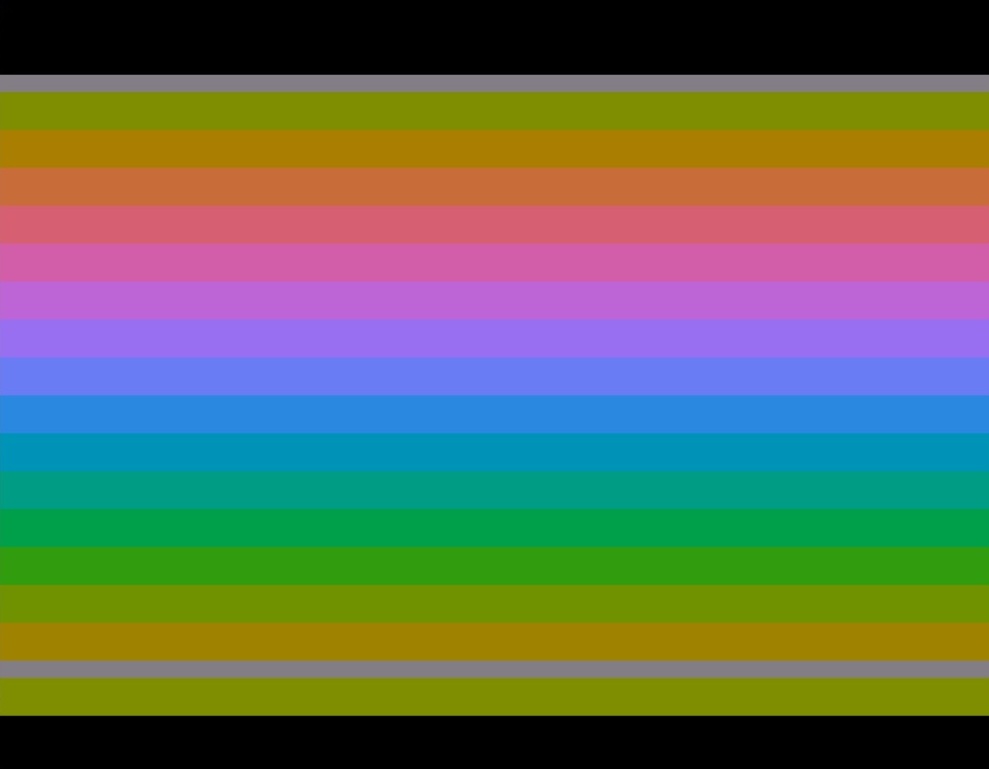
The Color Bars Subtest verifies operation of the GTIA’s color generation circuitry and provides a means of adjusting the computer’s color frequency. As shown in figure 5-17, the display consists of a 15-color rainbow scale separated from a single reference color bar by a gray reference bar. The operator determines whether the test passes by confirming that the upper and lower reference color bars are identical.
Figure 5-17. Color Bars
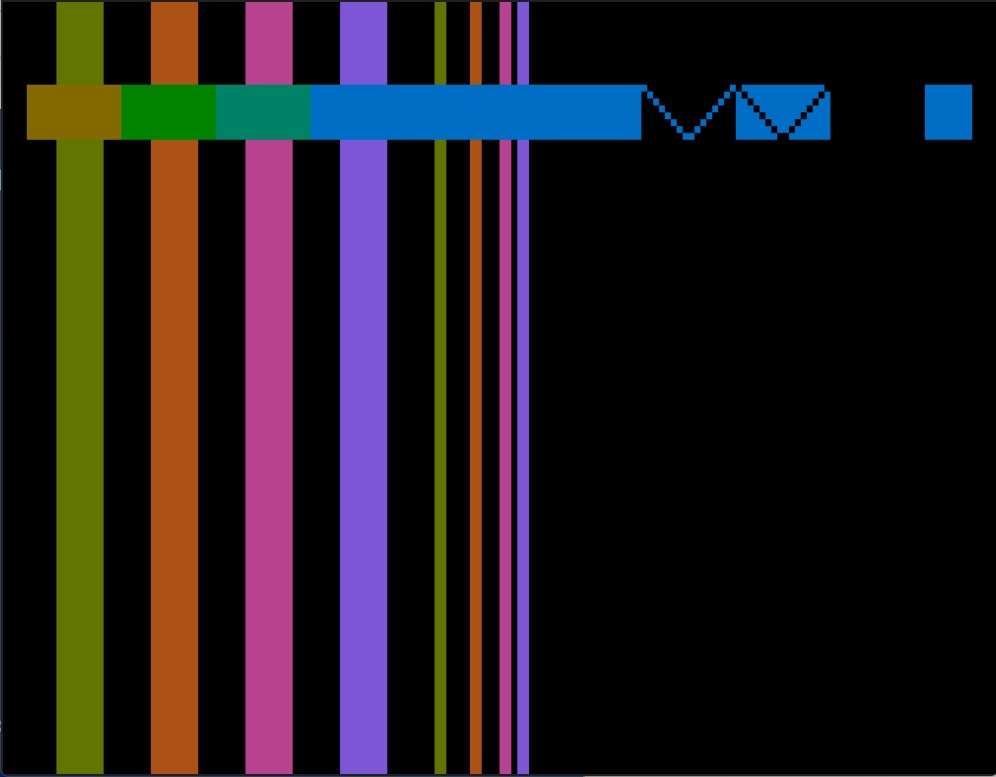
[C2] Video Subtest
The Video Subtest exercises the computer’s video circuitry and checks for pattern sensitivity in the ANTIC chip. The screen shown in figure 5-18 consists of wide and narrow vertical color bars, a horizontal color bar with varying colors, two upright V shapes, one normal and one inverse, and a solid square. All elements should appear stable, properly aligned, and free of missing, distorted, or incorrectly colored regions. The vertical bars are generated using both playfield and Player/Missile Graphics and should appear as continuous, uniform lines without visible discontinuities or misalignment.
Figure 5-18. Video Test
[D0] Xternal Audio Test
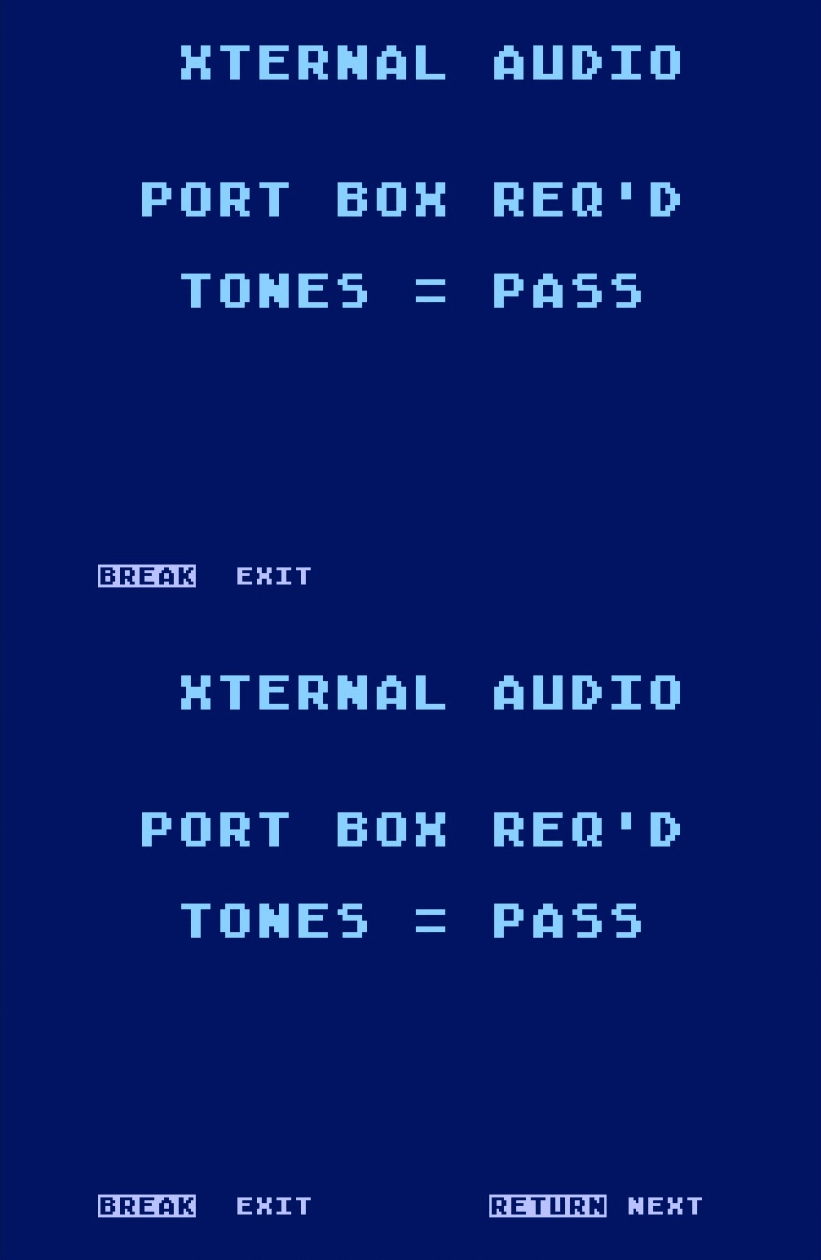
The Xternal Audio Test simulates an external audio source, such as a cassette recorder or other audio device connected to the serial I/O (SIO) port. A series of tones produced by the port box are injected into the SIO audio input. If tones are heard, the test passes. Figure 5-19 shows the Xternal Audio Test screen.
Figure 5-19. Xternal Audio Test
If no tones are heard, verify the following before troubleshooting the computer:
- TV or monitor volume is turned up.
- Test assembly is properly connected.
- Test assembly is powered on.
- Test assembly Tone switch is set correctly.
- Inspect the UUT SIO connector for corrosion or damage.
- Verify the SIO cable has continuity across all 13 conductors.
If the problem persists, possible causes include:
- Incorrect 4.5MHz oscillator adjustment (RF output only).
- Faulty audio mixer chip or associated support circuitry.
- Faulty POKEY chip.
Interactive Diagnostic Utilities
The following utilities are available in SNGL mode and require operator interaction. Unlike the automated diagnostic tests, they are intended to evaluate external accessories or provide specialized service functions. Their results are not tabulated and are therefore not represented in the Error Report.
Joystick Utility
This test verifies the operation of a joystick and its trigger button. It is intended for testing a joystick accessory using a known functional computer.
Figure 5-20. Joystick Test
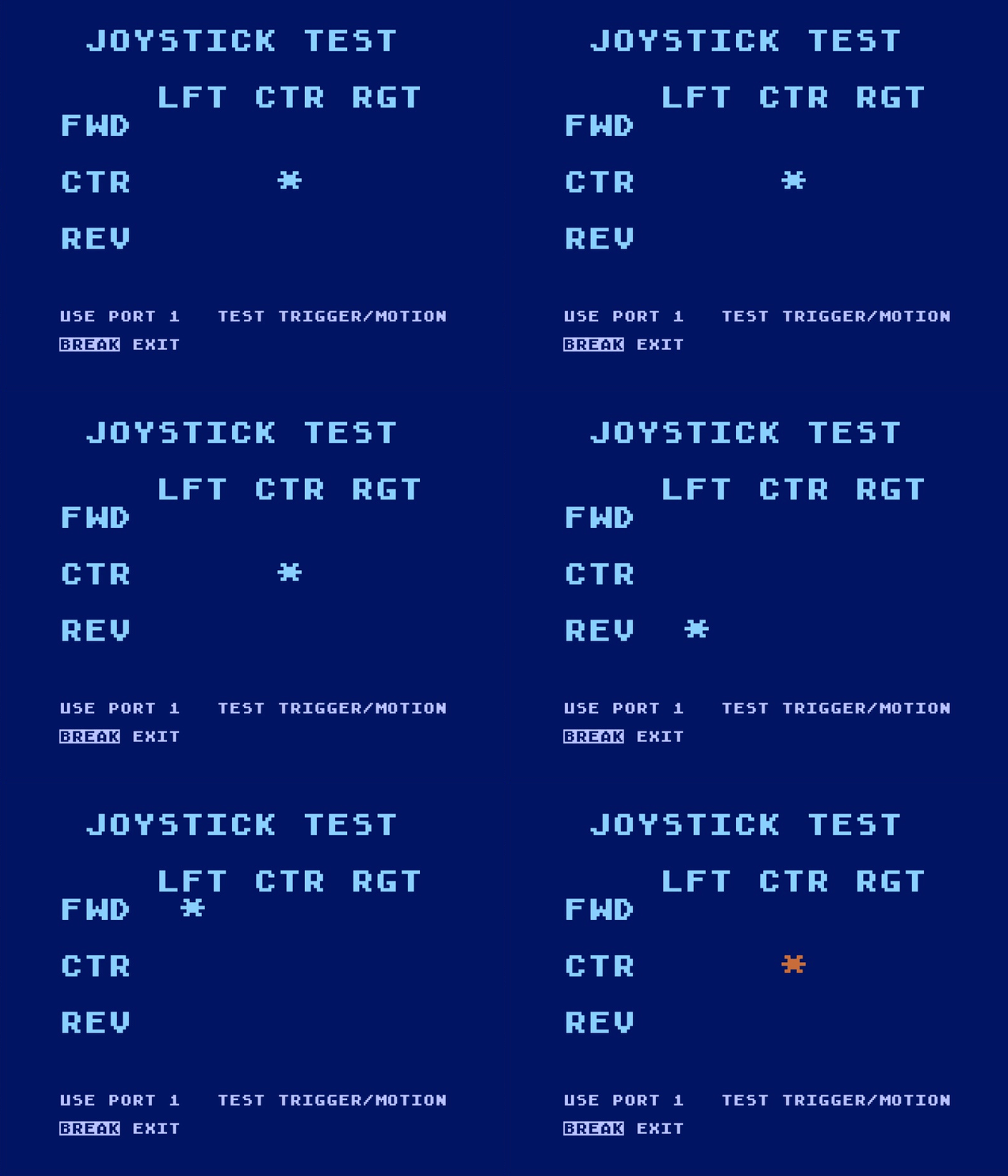
Connect the joystick to controller port 1. The asterisk (*) shown in figure 5-20 should remain centered when the joystick is at rest and should move in the corresponding direction as the joystick is operated. Verify all eight joystick positions and confirm that the asterisk returns to the center when the joystick is released. Pressing the trigger should cause the asterisk to appear red. Failure of any of these checks indicates a faulty joystick.
Keyboard Utility
This utility verifies the operation of the computer keyboard, including the special function keys. All keys may be tested except BREAK and RESET, which are verified by their normal operation.
Figure 5-21. Keyboard Test
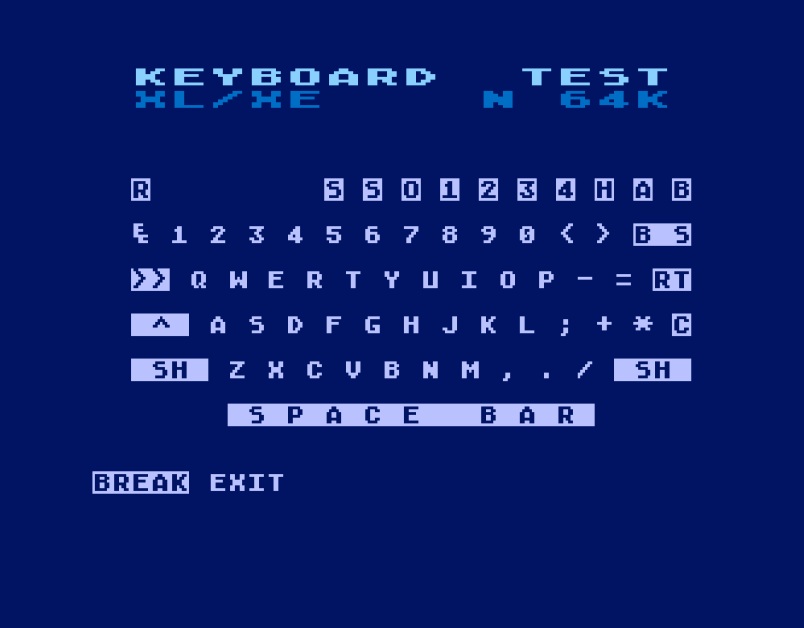
The keyboard layout display (see figure 5-21) is fixed and always represents an Atari 1200XL keyboard, regardless of the computer under test. Consequently, some displayed keys are not applicable to all computer models.
As each key is pressed, the corresponding key on the display flashes in inverse video and a tone is heard. Test the modifier keys by holding CONTROL or SHIFT while pressing an alpha key.
Pressing BREAK will return to the main menu. Pressing RESET should reset the computer and return to the software splash screen.
Failure of a key to register or produce a tone may indicate:
- Faulty keyboard switch.
- Faulty keyboard cable/membrane.
- Faulty keyboard decoder circuitry.
- Faulty POKEY chip.
Paddle Utility
This utility verifies the operation of a paddle controller using a known functional computer.
Figure 5-22. Paddle Test
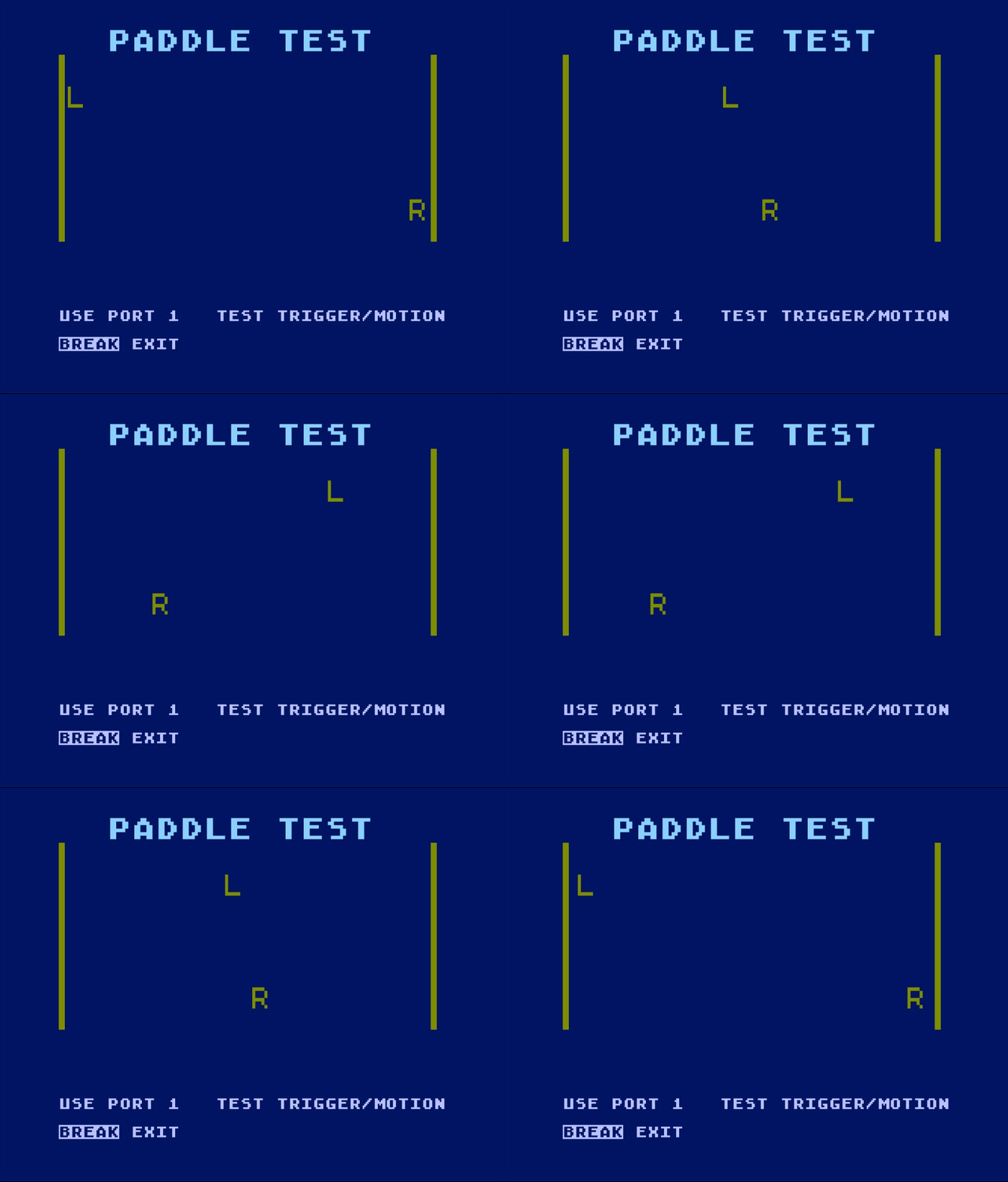
Connect the paddle controller to controller port 1. Rotate the paddle through its full range and verify that the on-screen indicator moves smoothly in the corresponding direction and reaches both ends of its range. Press the paddle trigger button and verify that the corresponding fire-button indicator responds.
Failure of the indicator to move through its expected range, erratic or unstable movement, or failure of the trigger button to register may indicate a faulty paddle controller.
Maint/RF-Adj Utility
This utility assists in verifying and adjusting the computer’s RF modulator alignment. Upon entering Maintenance Mode, a solid black screen is intentionally displayed to facilitate measurement and adjustment of the Channel 2 video carrier frequency (61.25MHz).
Pressing any key enables a continuous audio tone that may be used to verify and adjust the 4.5MHz sound carrier frequency.
Note: Alignment procedures and adjustment points vary between computer models. Consult the pertinent Atari Field Service Manual for the computer under test before making RF modulator adjustments.
6. Error Report
This section explains how to navigate the Error Report and interpret the accumulated diagnostic results.
Navigation
The Error Report can be navigated using the console keys or their corresponding keyboard aliases. Navigation controls are shown at the bottom of each report page and provide sequential page selection as well as direct access to pages containing errors.
Table 6-1. Error Report Navigation
| Console | Key | Function | Description |
|---|---|---|---|
| OPTION | → | Next | Navigates to the next page. |
| SELECT | ← | Prev | Navigates to the previous page. |
| START | TAB | Next Err | Navigates to the next page with errors, or to the overview if none are found. |
| START | – | Resume | START is reassigned to resume testing when the Error Report is previewed during testing. |
| BREAK | Exit | Exits to the Main Menu. If the Error Report was opened during active testing, the interrupted test is also aborted. |
RESET clears all accumulated tabulated data while reinitializing UberSalt to prepare for a fresh diagnostic session.
Common Report Fields
The Error Report detail pages share a common layout. Each page begins with a report heading followed by the computer info banner and the CYCLES and ERRORS fields. Additional information specific to the diagnostic appears below these common fields.
Unless otherwise documented for a particular report:
CYCLES represents the number of completed executions of the test associated with that report page since UberSalt was last initialized.
ERRORS represents the cumulative number of failures recorded by that report page since UberSalt was last initialized.
Interpreting Non-Numeric Values
UberSalt uses the following exception values wherever results and counters are shown to indicate undefined values or counts that have reached their display limit.
Table 6-2. Non-Numeric Values
| Value | Meaning |
|---|---|
____ | Indicates an undefined result. The value has not yet been established, usually because the corresponding test has not run or does not apply to the system being tested. |
10K+ | Indicates that a counter has exceeded its numeric limit of 9,999. CYCLES, ERRORS, UPTIME, and BURNIN counters retain 10K+ rather than wrapping to zero. Testing and failure-detail collection continue, but the affected counter’s exact total is no longer retained. |
Interpreting Test Result Indicators
Several Error Report pages use graphical indicators to show the status of individual test results. Table 6-3 identifies these indicators and explains their meanings. Not all indicators apply to every report.
Table 6-3. Test Result Indicators
| Indicator | Meaning |
|---|---|
| . | Test not yet completed. |
| _ | Test completed with no failures recorded. |
| F | One or more failures recorded. |
The following sections describe each Error Report page and explain how to interpret the accumulated diagnostic results. The System Overview provides session-wide totals, while the nine detail reports provide results specific to their associated diagnostic tests.
Error Report Analysis
The Error Report consists of static pages. Some figures in this section cycle through multiple screenshots to illustrate different examples or states of a report.
System Overview Report
The System Overview is the first page of the Error Report and summarizes diagnostic activity since UberSalt was last initialized.
Figure 6-1. Error Report – System Overview
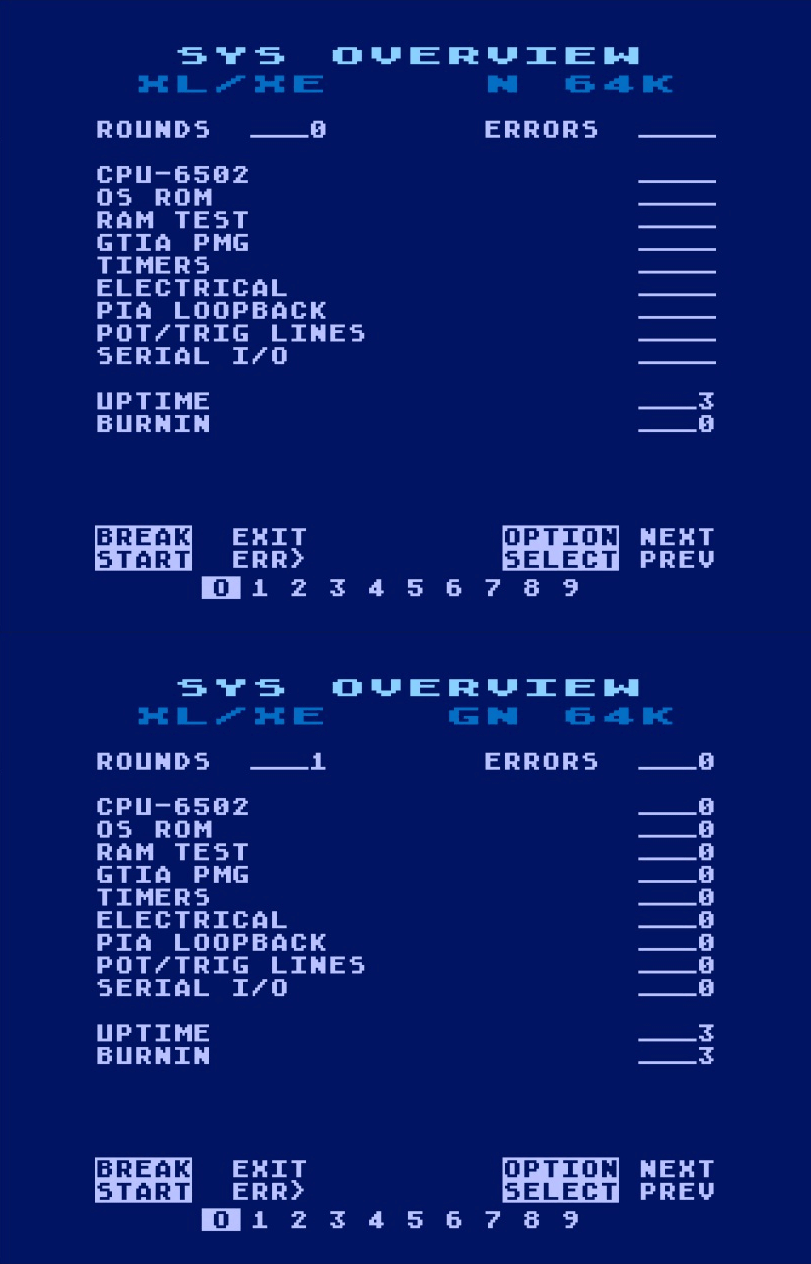
ROUNDS displays the number of completed test sequences performed with MULT mode. Each completed test sequence increments this value by one. Tests executed individually using SNGL mode do not contribute to this count.
ERRORS displays the cumulative number of errors recorded since UberSalt was last initialized. This value is the sum of the errors reported by the nine detail reports.
UPTIME displays the total elapsed time, in minutes, since UberSalt was initialized.
BURNIN displays the accumulated time, in minutes, spent actively testing since UberSalt was initialized.
CPU-6502 Report
The CPU-6502 Report displays the accumulated test cycles and errors recorded during the CPU-6502 Test.
Figure 6-2. Error Report – CPU-6502
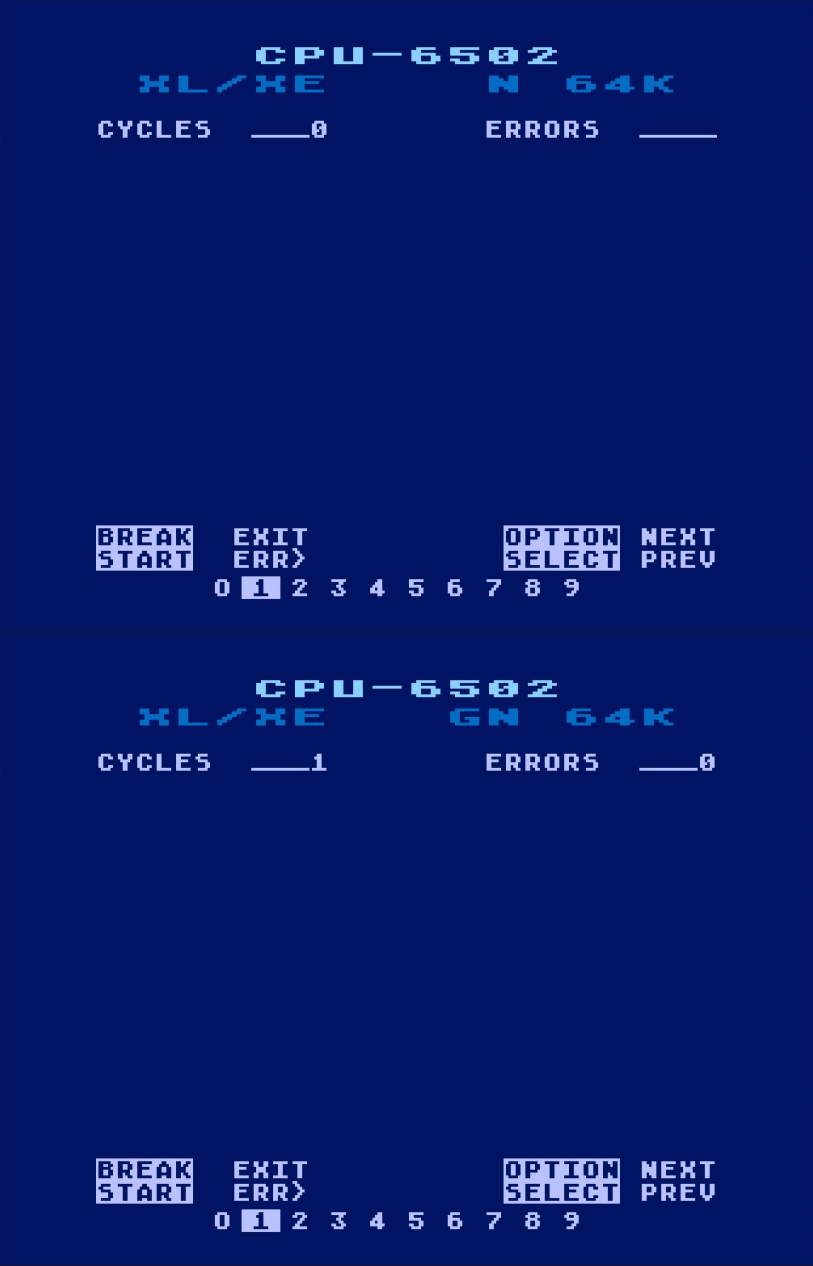
CYCLES displays the number of completed CPU-6502 test iterations. Each iteration consists of 100 executions of the 6502 opcode test but increments the Error Report CYCLES value only once, allowing the report to maintain an accurate long-term count.
OS ROM Report
The OS ROM Report (figure 6-3) displays results from the OS ROM Test, including accumulated CYCLES and ERRORS for each ROM and retained READ and CALC checksum values.
Figure 6-3. Error Report – OS ROM
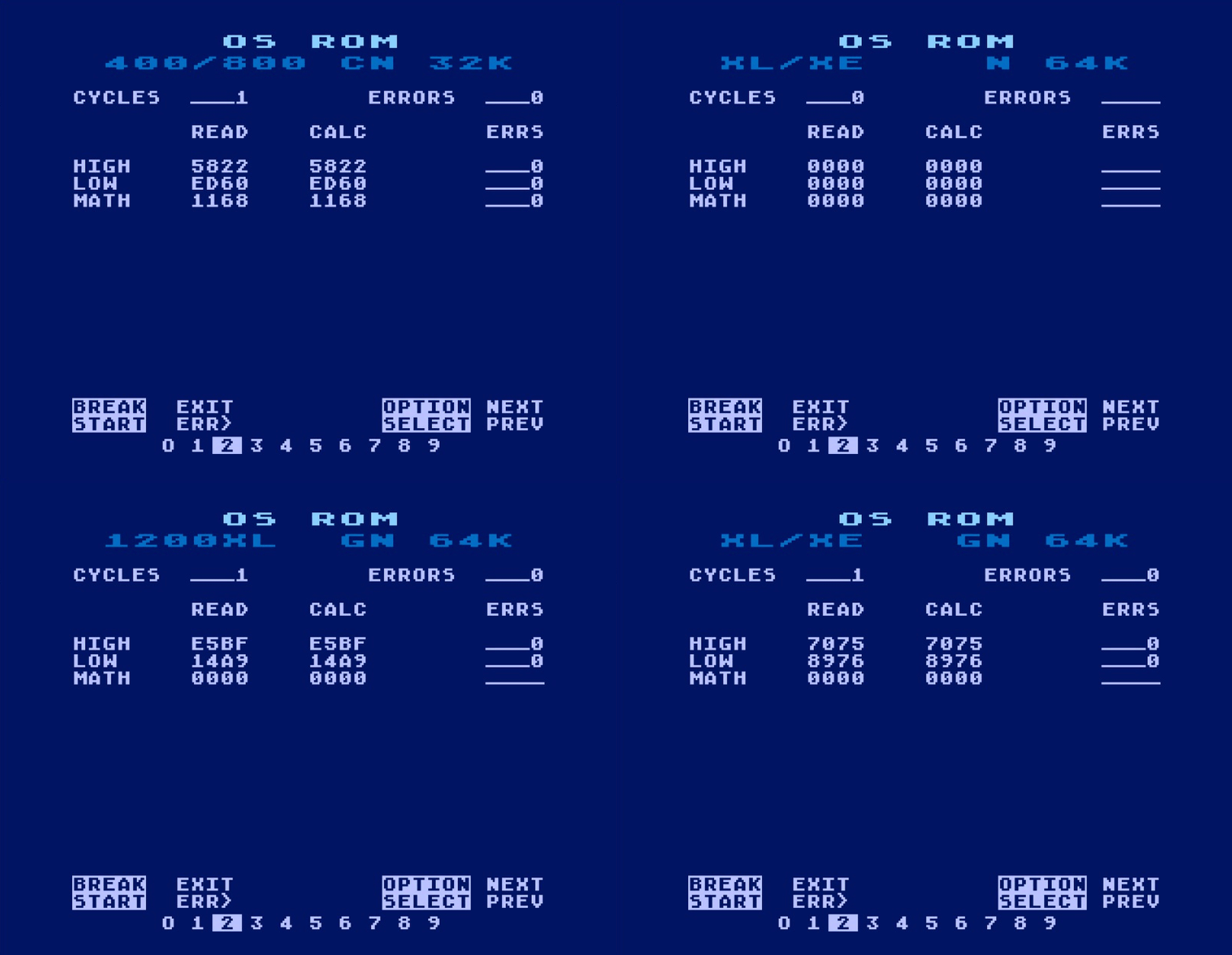
The first time a ROM is tested, its READ and CALC values are recorded in the Error Report. These values remain unchanged while subsequent tests pass. If a checksum failure occurs, they are replaced with the values from that failure; each later failure replaces them again. As a result, READ and CALC represent the first test results if the ROM has never failed, or the results from the most recent failure if it has.
RAM Test Report
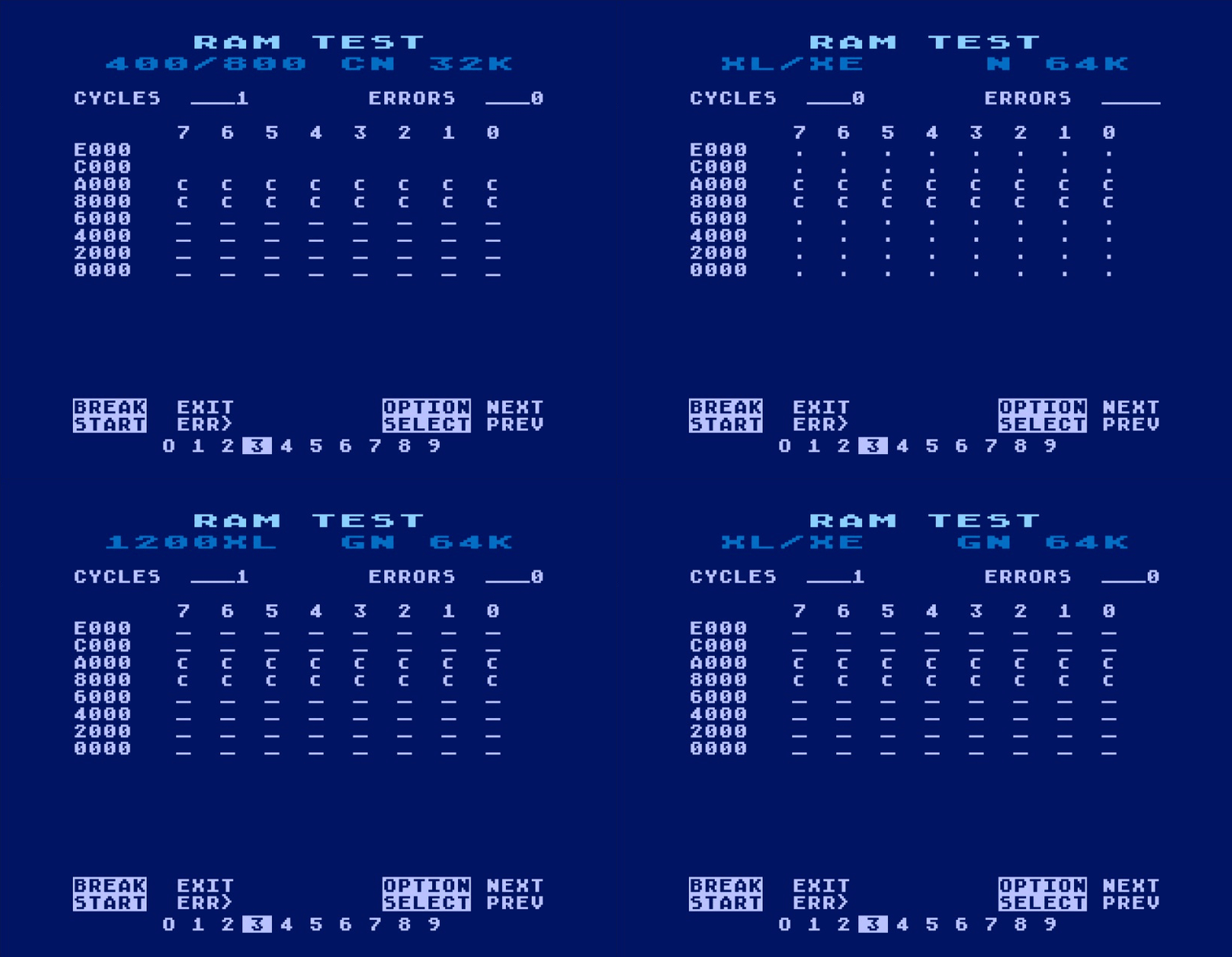
The RAM Test Report displays results recorded during the RAM Test in a grid organized by 8 KB memory banks, with columns representing data bits 7 through 0.
In addition to the indicators described in table 6-3, the report uses the symbols in table 6-4 to identify memory regions that cannot be tested.
Table 6-4. Supplemental RAM Test Result Indicators
| Indicator | Meaning |
|---|---|
| c | Inaccessible memory region occupied by the UberSALT cartridge ROM. |
| Blank | No RAM detected in that memory region. |
Figure 6-4. Error Report – RAM Test
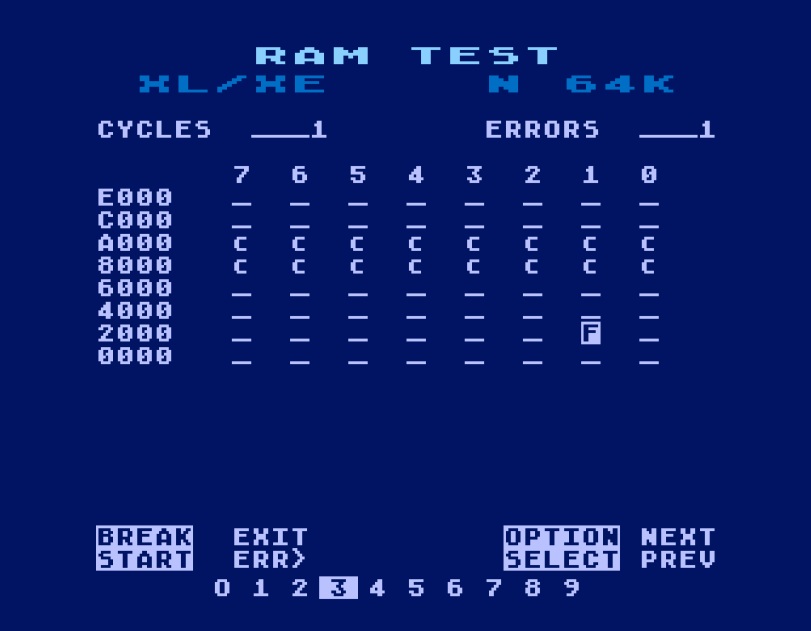
In the example shown in figure 6-5, the RAM Test has completed one cycle and recorded one error. The failure matrix identifies the error within the 8 KB memory bank beginning at address $2000, involving data bit 1.
Figure 6-5. Error Report – RAM Grid Failure Example
GTIA PMG Report
The GTIA PMG Report displays recorded results of the collision-detection tests performed during the GTIA PMG Tests. The upper matrix identifies collisions involving MISSILE0 through MISSILE3 with players and playfields, while the lower matrix identifies collisions involving PLAYER 0 through PLAYER 3 with missiles and playfields.
Figure 6-6. Error Report – GTIA PMG
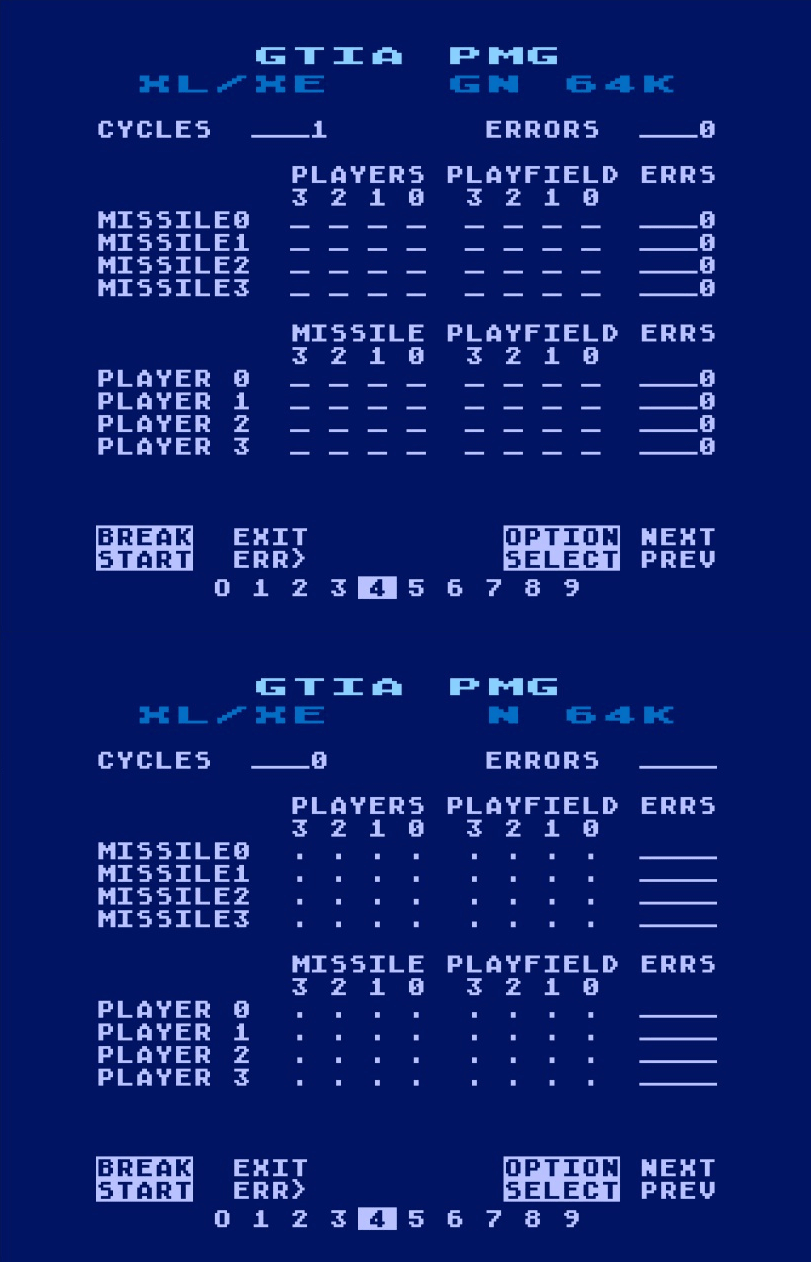
Figure 6-7 shows an example with simulated collision-detection failures. The matrices use the indicators described in table 6-3 to distinguish untested collision relationships, successful tests, and recorded failures.
Figure 6-7. Error Report – GTIA PMG Showing Errors
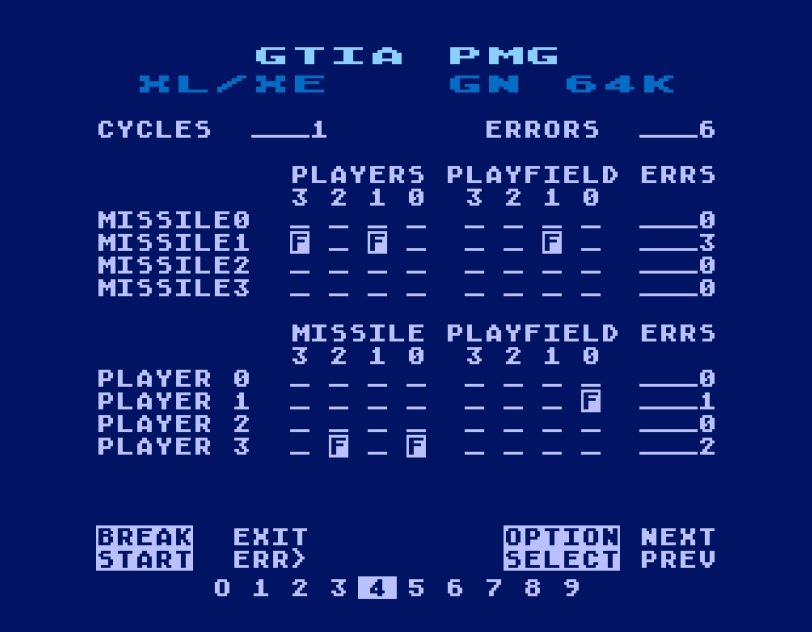
Results accumulate throughout the diagnostic session. Once a failure indicator is set, it remains displayed even if subsequent tests pass. The ERRS value beside each row counts all failed collision checks for that player or missile, including repeated failures of the same relationship. Consequently, ERRS may exceed the number of failure indicators displayed in the row.
Timers Report
The Timers Report displays accumulated error counts from the Tone/Timers Test. Separate counts are maintained for POKEY timers AUDF1, AUDF2, and AUDF4, and for the random-number generator.
Figure 6-8. Error Report – Timers
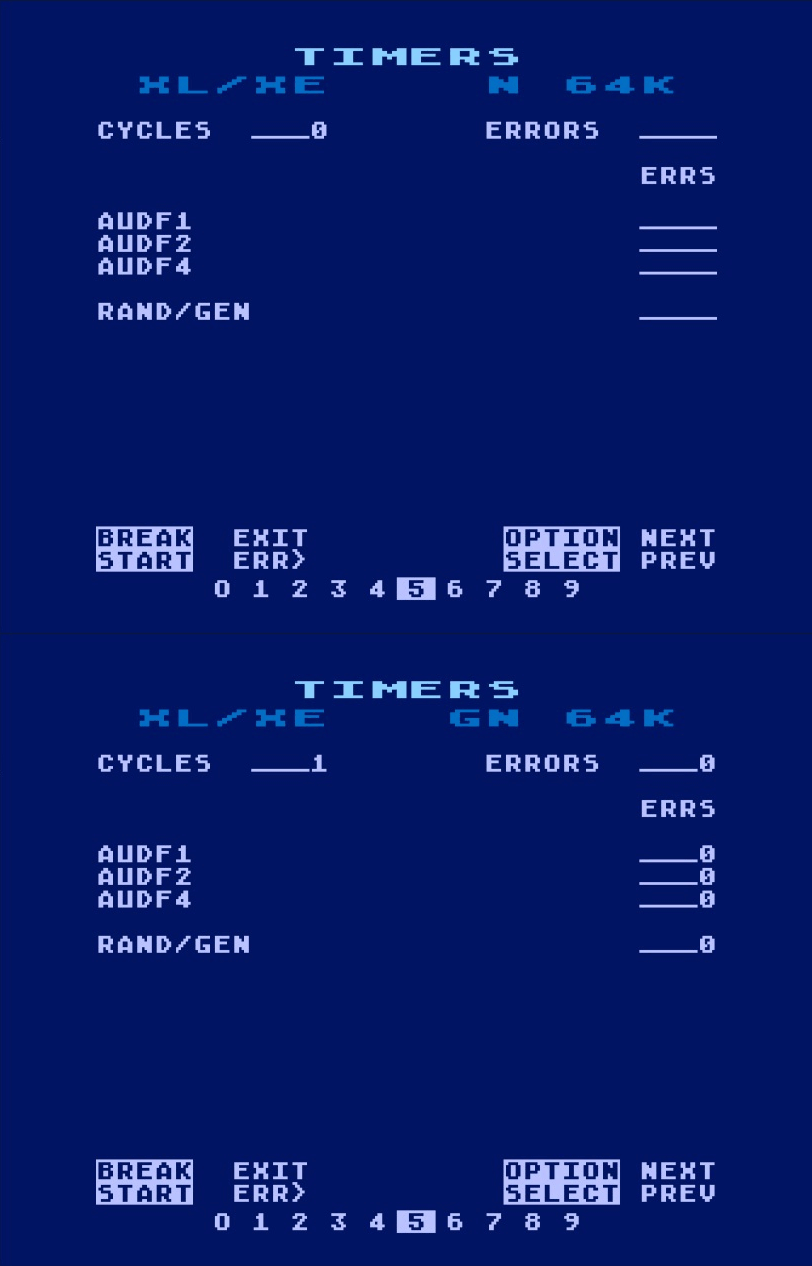
AUDF1, AUDF2, AUDF4
Display the cumulative number of failures recorded for each POKEY timer.
RAND/GEN
Displays the cumulative number of failures recorded while verifying that POKEY’s random-number generator produces changing values.
Electrical Report
The Electrical Report displays the cumulative number of out-of-limit readings recorded for each measurement during the Electrical Test. Each entry corresponds to a measurement shown on the Electrical Test screen, allowing the operator to identify which electrical conditions produced errors and how many times each occurred.
Figure 6-9. Error Report – Electrical
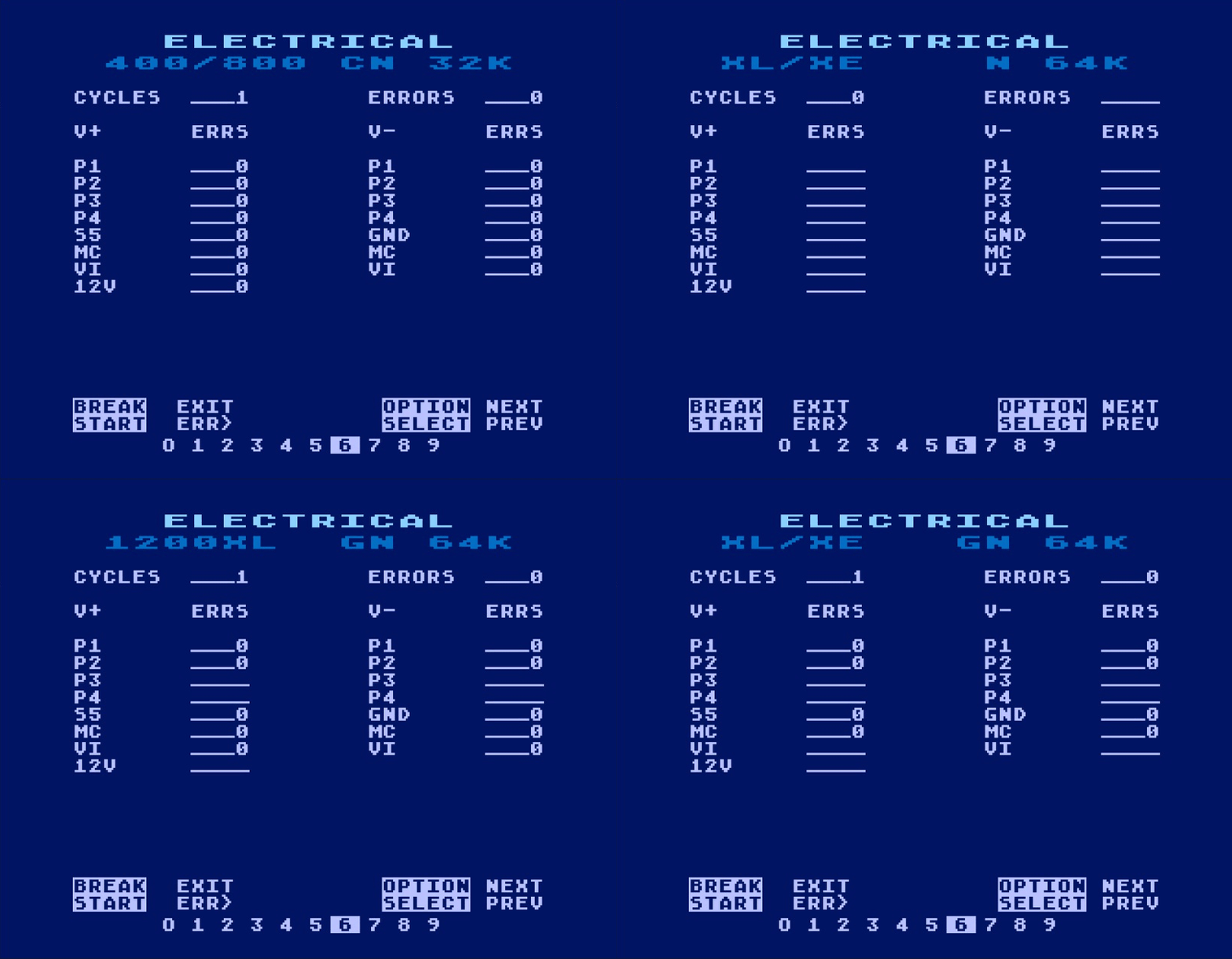
Each value represents the number of readings that fell outside the limits specified in table 5-1. Measurements that do not apply to the computer under test are displayed as ____.
PIA Loopback Report
The PIA Loopback Report displays failures recorded during the Loopback-PIA Test. Each entry identifies a tested PIA data or control-line signal, with its loopback path illustrated beside the accumulated error count (see figure 6-10).
Figure 6-10. Error Report – PIA Loopback
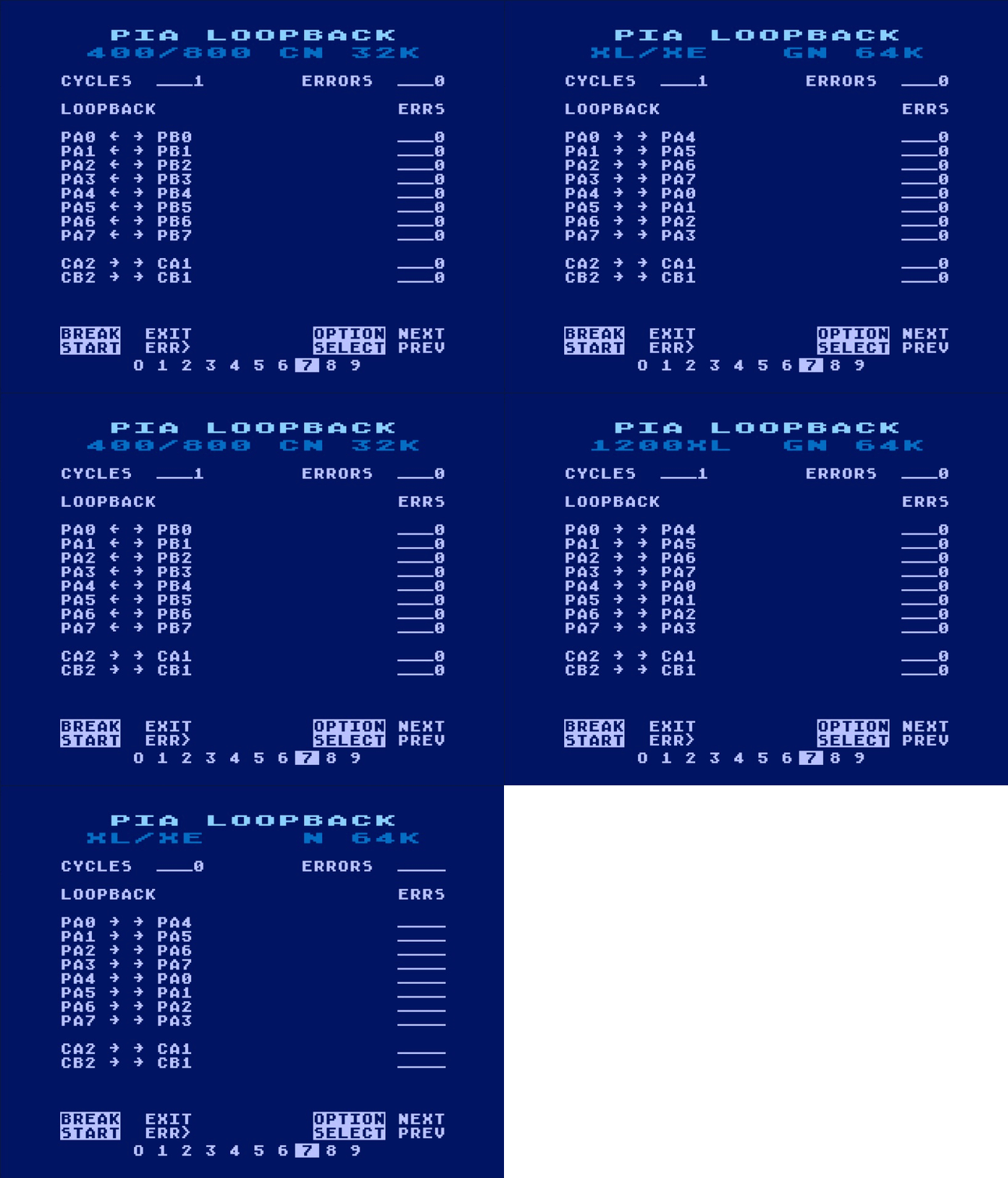
On 400/800 computers, the report combines failures from both directions for each PA/PB pair. On XL/XE computers, it distinguishes the two directions by identifying the driving PA line. A reported failure identifies a problem with that signal path; it does not, by itself, establish whether the fault lies in the driving output, receiving input, or connecting hardware.
Pot/Trig Lines Report
The Pot/Trig Lines Report displays results recorded during the Pot/Trig Lines Test.
Figure 6-11. Error Report – Pot/Trig Lines
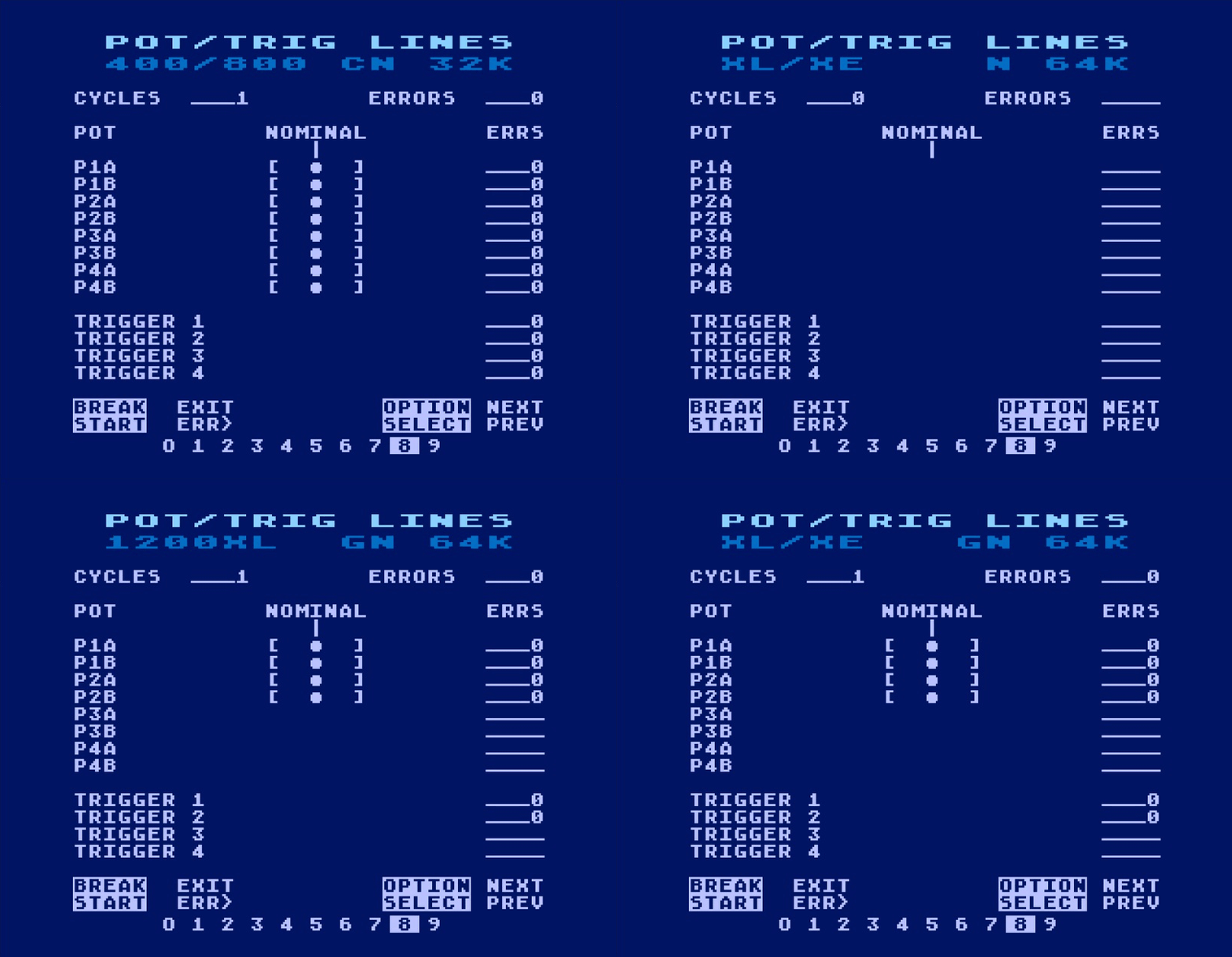
P1A through P4B correspond to the eight POKEY potentiometer inputs, identifying Controller Ports 1 through 4 and their associated A and B inputs. Each reading outside the nominal range increments the corresponding error counter, while UberSalt retains the most significant deviation for review. Deviations to the left of nominal indicate a longer-than-expected time constant; deviations to the right indicate a shorter-than-expected time constant. The far-right position indicates a reading consistent with a short to +5V.
TRIGGER 1-4 displays the cumulative number of failures recorded for each controller-port trigger input. Trigger inputs not applicable to the computer under test are displayed as ____.
Serial I/O Report
The Serial I/O Report displays results recorded during the Serial I/O Test, including data and clock loopback, asynchronous communication, and synchronous communication at their respective baud rates.
The SYNC and ASYNC tables shown in figure 6-12 use the symbols described in Table 6-3 to distinguish untested conditions, successful tests, and recorded failures.
Figure 6-12. Error Report – Serial I/O
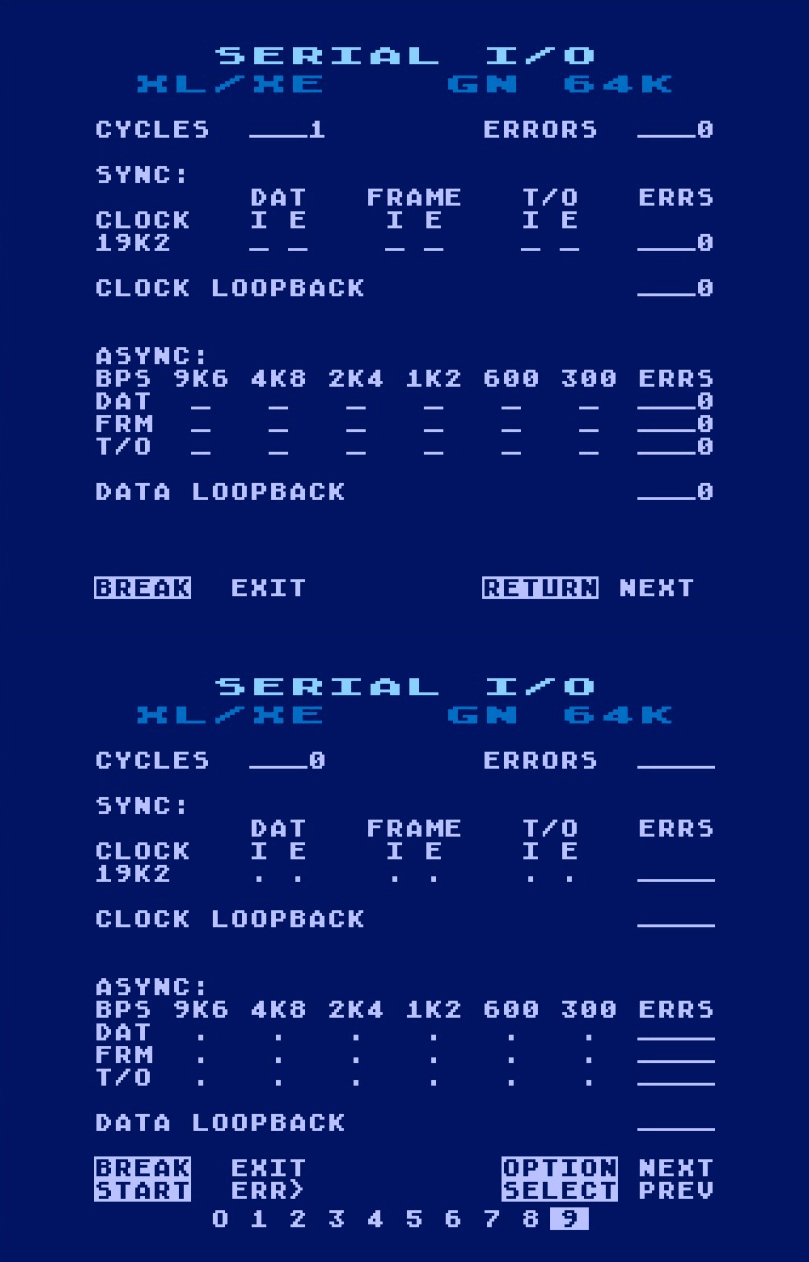
SYNC
Reports results of 19.2K synchronous serial communication using internally generated (I) and externally supplied (E) clock sources. Separate indicators identify data (DAT), framing (FRAME), and timeout (T/O) failures for each clock source.
CLOCK LOOPBACK
Displays the cumulative number of failures detected during the basic serial-clock loopback test, in which the computer’s clock output is routed through the test assembly and returned to its clock input.
ASYNC
Reports results of asynchronous serial communication at 300, 600, 1200, 2400, 4800, and 9600 baud. Separate indicators identify data (DAT), framing (FRM), and timeout (T/O) failures at each baud rate.
DATA LOOPBACK
Displays the cumulative number of failures detected during the basic serial-data loopback test, in which the computer’s serial data output is routed through the test assembly and returned to its serial data input.
Results accumulate throughout the diagnostic session. Once a failure indicator is set, it remains displayed even if subsequent tests pass. The ERRS fields count all recorded failures, including repeated failures of the same test condition, so their values may exceed the number of failure indicators displayed.
7. Diagnostic Codes
EDB Diagnostic Status Codes
Table 7-1. Error Display (EDB) Hex Codes
| Code | Test/Status | Detail |
|---|---|---|
| 00 | Idle/Menu | No active diagnostic test |
| 10 | ANTIC Stress | ANTIC stress test |
| 20 | Bi-Dir Clock | Bidirectional clock test |
| 30 | CPU-6502 | 6502 microprocessor test |
| 40 | Electrical | Electrical/voltage test |
| 50 | GTIA PMG | GTIA PMG sizing, motion, and playfield collision test |
| 51 | GTIA PMG | GTIA PMG collision-detection test |
| 52 | GTIA PMG | GTIA PMG/playfield priority test |
| 60 | Loopback-PIA | PIA loopback test |
| 7x | OS ROM | OS ROM checksum test x = 4 KB address region being read for checksum calculation |
| 80 | POT/Trig Lines | Pot and trigger lines test |
| 9x | RAM Test | Base RAM test x = 4 KB memory region currently being tested |
| A0 | Serial I/O | Data & clock loopback |
| A1 | Serial I/O | Asynchronous serial I/O |
| A2 | Serial I/O | Synchronous I/O using UUT clock |
| A3 | Serial I/O | Synchronous I/O using external clock |
| B0 | Tone/Timers | Voice 1 test |
| B1 | Tone/Timers | Voice 2 test |
| B2 | Tone/Timers | Voice 3 test |
| B3 | Tone/Timers | Voice 4 test |
| B4 | Tone/Timers | Timers 1, 2, and 4, plus the random-number generator test |
| C0 | Video Tests | Gray bars test pattern |
| C1 | Video Tests | Color bars test pattern |
| C2 | Video Tests | Combined PMG/playfield test pattern |
| D0 | Xternal Audio | External audio test |
| E0 | – | Reserved |
| Fx | System Fault | Fatal system fault code (see table 7-2) |
Fatal System Fault Codes
A fatal system fault is a condition severe enough to prevent UberSalt from safely continuing diagnostic operation. When detected, normal testing is halted and UberSalt attempts to display a full-screen fault code and report the same code to the Error Display Board, if present. Fatal faults generally involve low-memory integrity, stack operation, or other conditions essential to continued software execution.
The fault codes and their associated conditions are listed in table 7-2.
Figure 7-1. Fatal System Error Screen
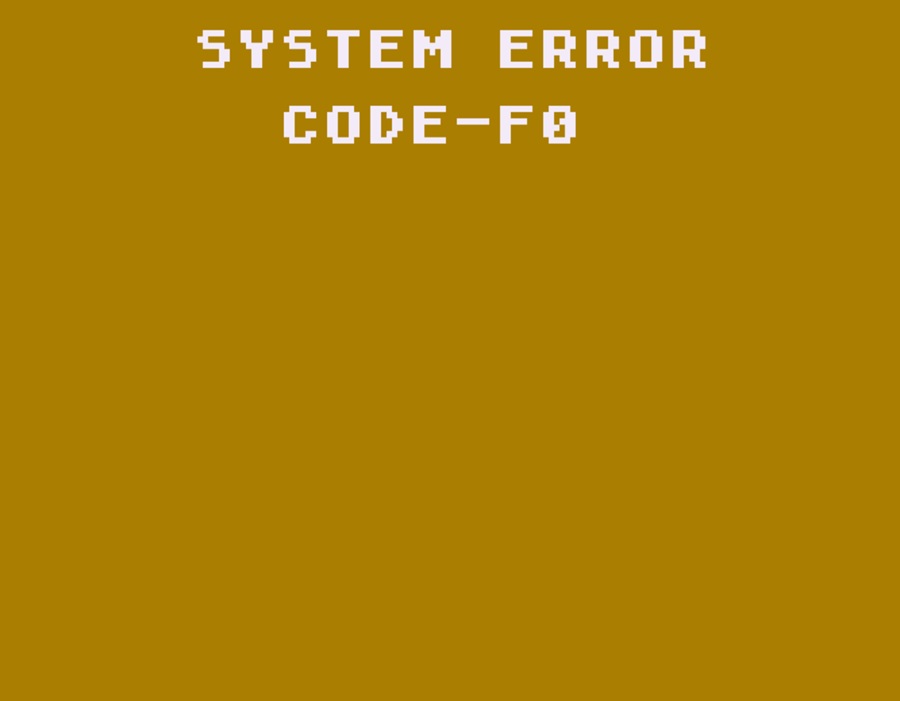
Note: A continuous tone accompanies this screen. Press any console key to silence it.
Table 7-2. Fatal System Fault Codes
| Code | Detected Condition |
|---|---|
| F0 | Page 0 refresh failure using pattern $FF |
| F1 | Page 0 address-line test failure using pattern $00 |
| F2 | Page 0 address-line test failure using pattern $FF |
| F3 | Page 0 walking-1 data-line test failure |
| F4 | Page 0/1 refresh failure using pattern $00 |
| F5 | Page 0/1 write/read failure using pattern $00 |
| F6 | Zero-page RAM integrity failure |
| F7 | Zero-page RAM refresh failure* |
| F8 | Stack/page-1 RAM integrity failure following refresh delay |
| F9 | Serial input failure |
| FA | Stack underflow – stack pointer exceeded $F8 boundary |
| FB | Stack overflow – stack pointer crossed below $80 boundary |
| FC | Stack/page-1 RAM integrity failure |
| FD | Insufficient base RAM; at least 16 KB is required. |
| * Reserved/defined condition; not currently generated during normal UberSalt operation. | |
Note: Most fatal system fault codes are associated with RAM failures, and RAM corruption is a likely cause. Because UberSALT also relies on RAM for its operation, such corruption may compromise its attempts to display the detected fault code, resulting in unpredictable characters or codes on screen or on the Error Display Board.